How to Add Japanese Subtitles in DaVinci Resolve
Japanese writes without spaces between words and mixes three scripts in one sentence, so where a caption line breaks is a real editorial decision, not an afterthought. Caption Pro transcribes your timeline with Whisper AI, shows you the text to review before it is placed, and lets you control where each line wraps.
Solid transcription, review helps with homophones and kanji choice.
100% local. Nothing is uploaded.
Standard .srt, plus styled captions on your timeline
Resolve Studio, or Resolve free up to 21.0.4. Mac & Windows
Japanese runs kanji, hiragana, and katakana together with no spaces, so a caption tool cannot just break on a space the way it would in English. Caption Pro lets you set line breaks by hand so a line ends at a natural phrase boundary and stays readable on screen. The review step also lets you fix kanji the model chose incorrectly for a homophone before captions are placed.
Whisper transcribes Japanese well, though the lack of spaces and the number of homophones mean the review pass earns its keep here more than in most languages. For display, a font that covers the full Japanese range matters: Noto Sans JP is a reliable choice and renders kanji, hiragana, and katakana cleanly inside DaVinci Resolve Text+ templates.
This fits Japanese YouTube, short-form vertical video, vlogs, and content aimed at a Japanese audience or subtitled for one. You can also transcribe in another language and translate into Japanese, or start from Japanese and translate the captions outward into 100+ languages.
Where Japanese captions help
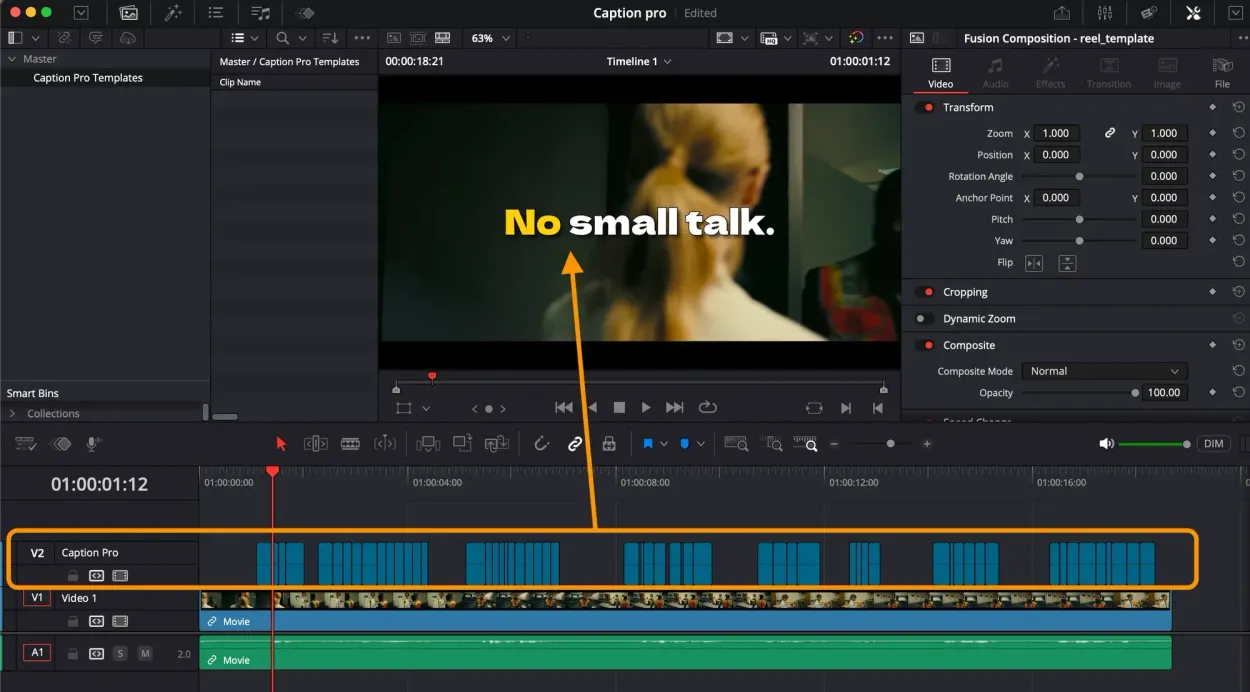
Generate Japanese Subtitles with Caption Pro
Word-by-word Auto Captions & Local Translation
Transcribe, translate, and style Japanese captions on your DaVinci Resolve timeline using local Whisper AI.
- Runs 100% locally with Whisper AI (no API fees)
- Word-by-word karaoke & pop-in animation styles
- Instant SRT import/export & timeline placement