beginner 3 min vhs nostalgia installation openfx plugin preset
How to Install VHS Nostalgia in DaVinci Resolve
VHS Nostalgia is an OpenFX plugin that emulates the full NTSC analog signal chain inside DaVinci Resolve. After purchase, your download includes the plugin bundle for macOS and Windows, 13 built-in presets as JSON files, 19 tape-inspired audio textures, and a detailed Welcome Guide in English and French. This tutorial covers the installation and your first quick start. For the complete walkthrough, every slider explanation, and ready-made recipes, refer to the Welcome Guide included in your download.
Prerequisites
- •DaVinci Resolve 18 or later (Free or Studio)
- •The VHS Nostalgia pack downloaded after purchase
- •Administrator access on your machine (for the OFX Plugins folder)
- •About 3 minutes
Steps
1
Install the plugin bundle
Quit DaVinci Resolve completely before installing.On macOS: copy the VhsNostalgia.ofx.bundle folder into
/Library/OFX/Plugins/. In Finder, use Go > Go to Folder… and paste /Library/OFX/Plugins. Create the folders if they do not exist. This is the Mac system Library (root of the disk), not your user Library.On Windows: copy the VhsNostalgia.ofx.bundle folder into C:\Program Files\Common Files\OFX\Plugins\. Create the OFX\Plugins folders if they do not exist. Windows will ask for administrator confirmation — accept.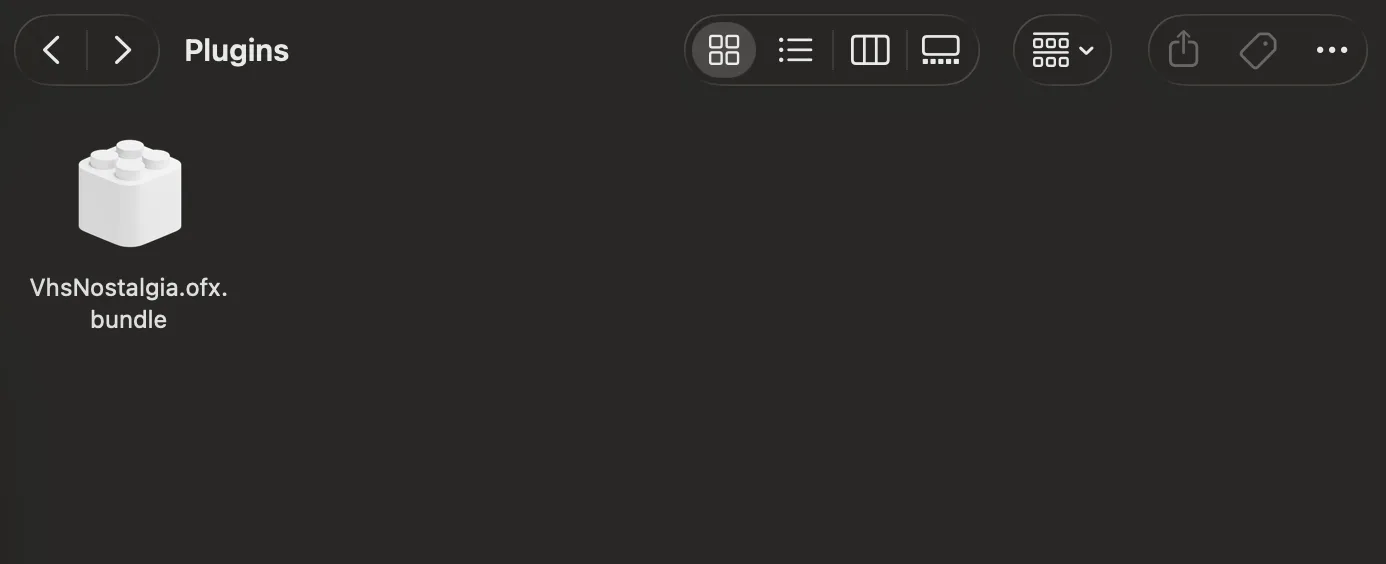
2
Relaunch Resolve and find the effect
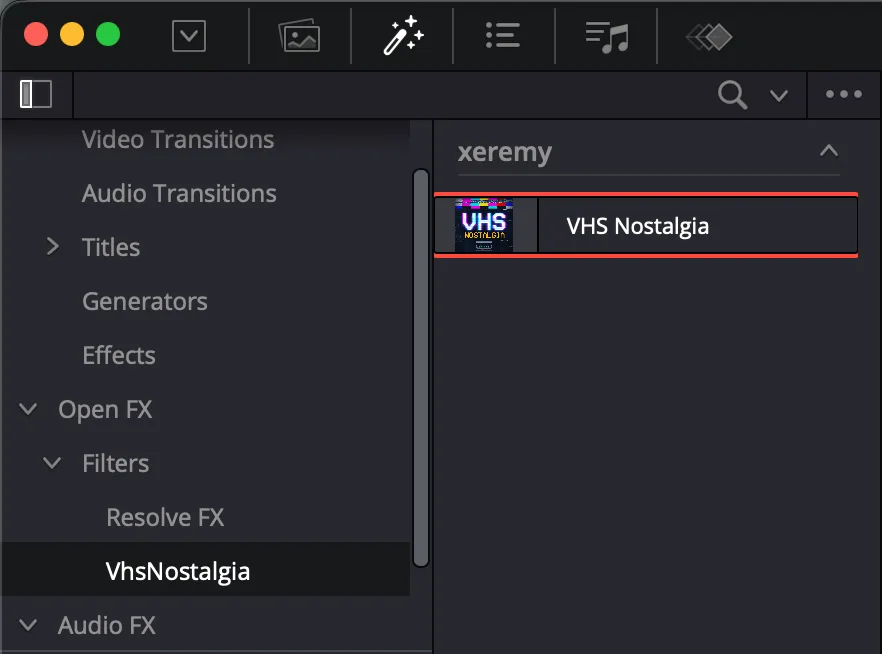
Relaunch DaVinci Resolve. The effect appears automatically under Effects > OpenFX > Filters > xeremy > VHS Nostalgia. No further activation or serial number is required. Drag it onto a clip in the Edit page, or onto a node in the Color page. The effect is now live and processes in real time.
3
Pick a preset and make it yours
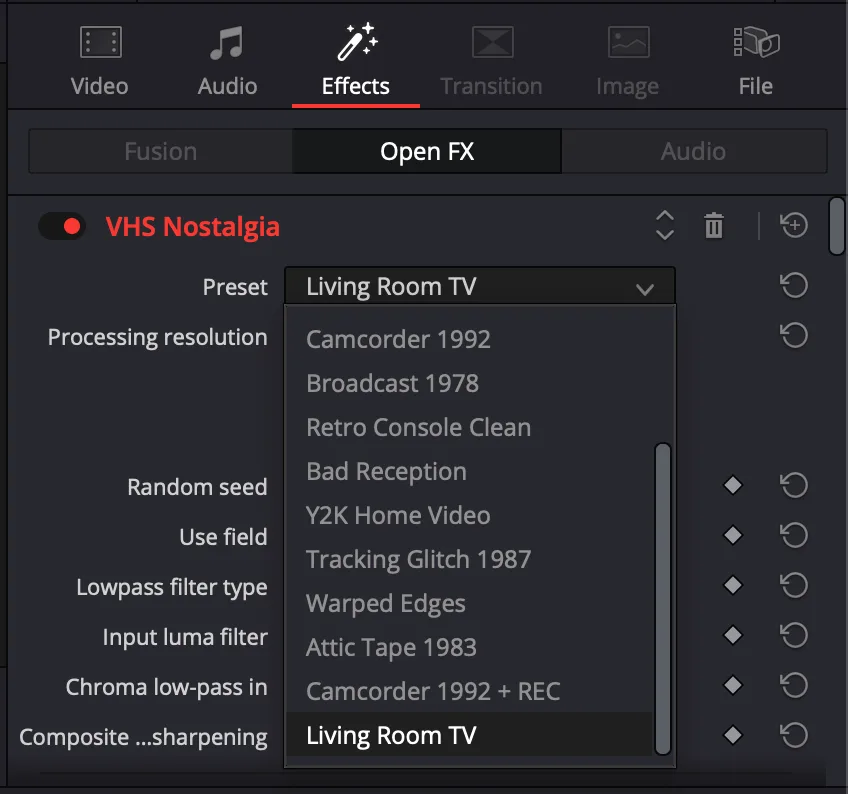
At the top of the effect controls, open the Preset menu and pick a look — every slider updates instantly. As soon as you touch any slider, the menu switches back to Custom. Save your own looks with Save Preset. The 13 built-in presets range from clean 1985 SP broadcast to worn-out rental tapes, tracking glitches, and bad reception.
4
Understand the control blocks
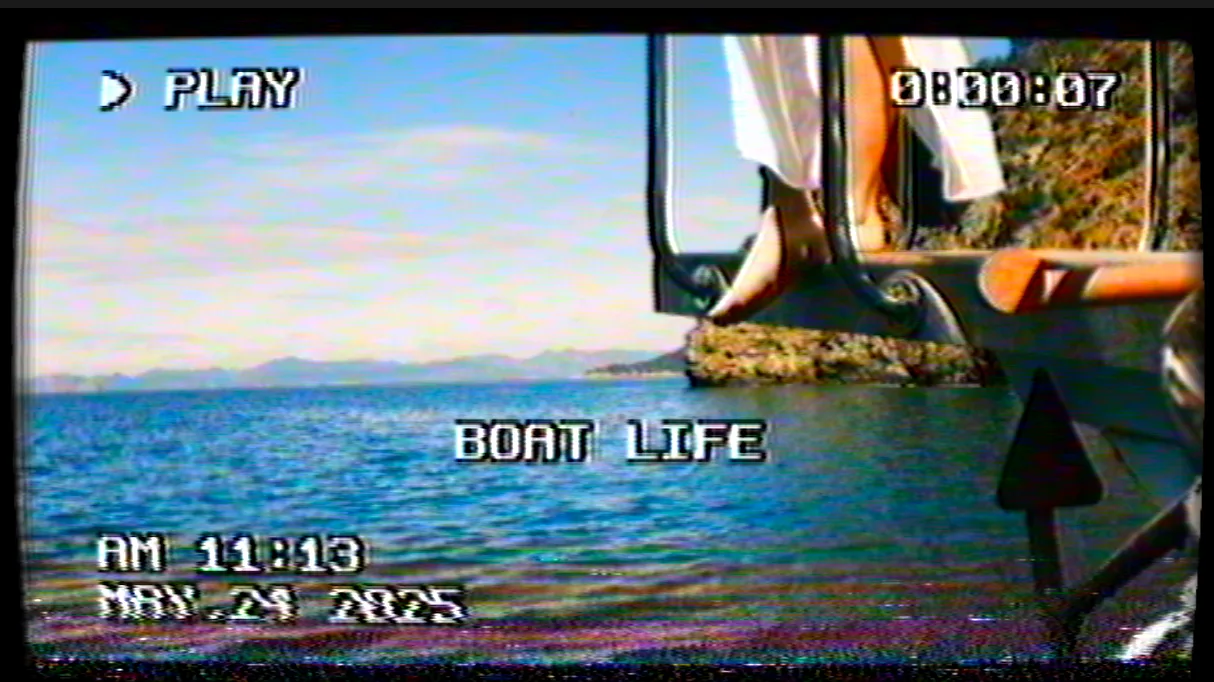
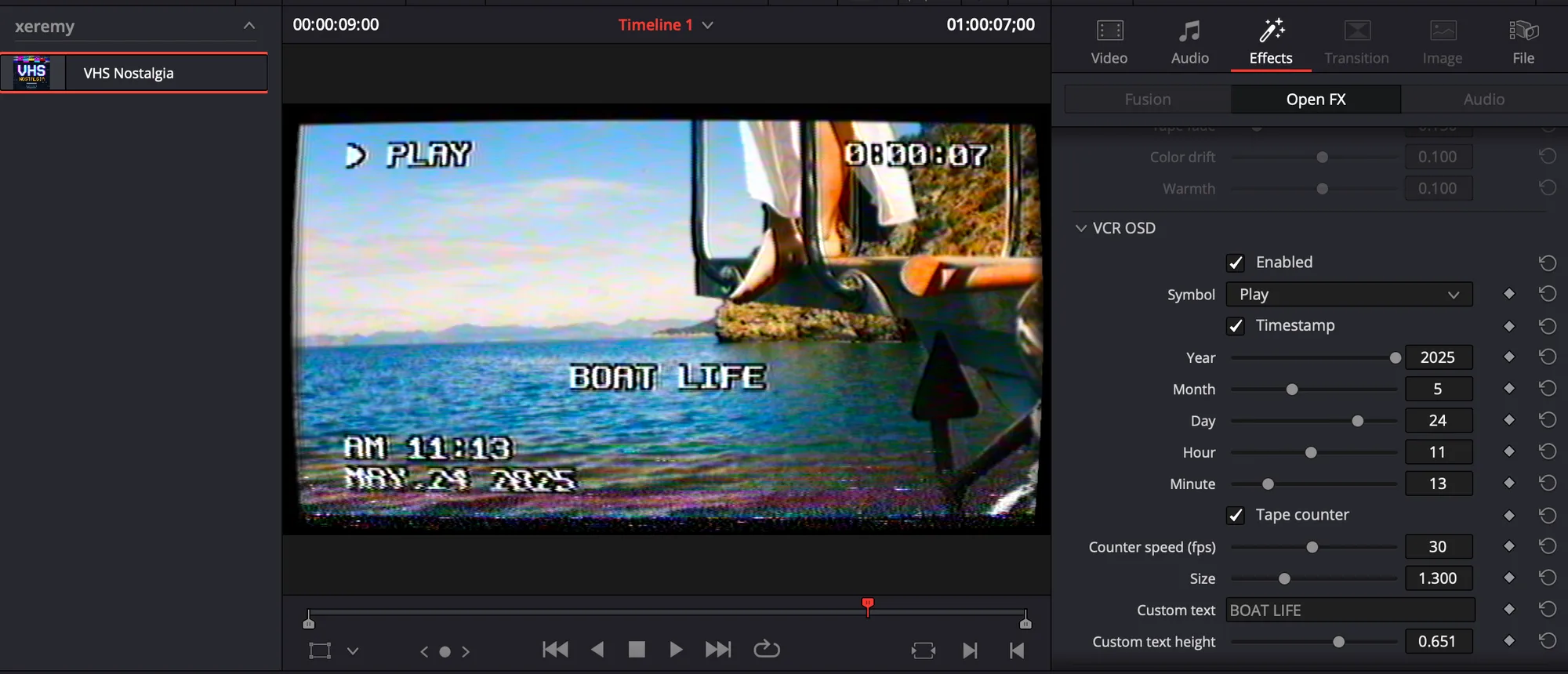
The effect follows the physical chain of a real VHS: the signal is degraded first (NTSC emulation), then the tape ages (Tape color), then the screen displays it (CRT screen). Each block can be enabled or disabled independently. The VCR OSD block adds PLAY symbols, blinking REC, timestamps, running counters, and custom captions — all rendered inside the signal so they degrade exactly like the image. For a full breakdown of every slider and ready-made recipes, see the Welcome Guide included in your download.
Conclusion
VHS Nostalgia is installed and ready. Explore the 13 presets as starting points, then dive into the independent blocks to build your own look. The Welcome Guide shipped with your download covers every control in detail, with screenshots and recipes for the most wanted looks. If you want to complete the illusion, layer the included tape-inspired audio textures under your treated clip.
View product details
OpenFX Video Plugin€49 · One-time payment
VHS Nostalgia Plugin
Authentic Analog Signal & CRT Emulation
Recreate authentic 80s & 90s tape artifacts in DaVinci Resolve. Features a real NTSC signal engine, 13 presets, VCR OSD overlays, and audio tape textures.
- 13 ready-to-use analog presets
- Real NTSC signal synthesis & CRT glow
- Works in DaVinci Resolve Free & Studio
Learn more & Get VHS Instant download · Mac & Windows
Related DaVinci Resolve Plugins from the Store