The Best Snap Captions Alternative for DaVinci Resolve
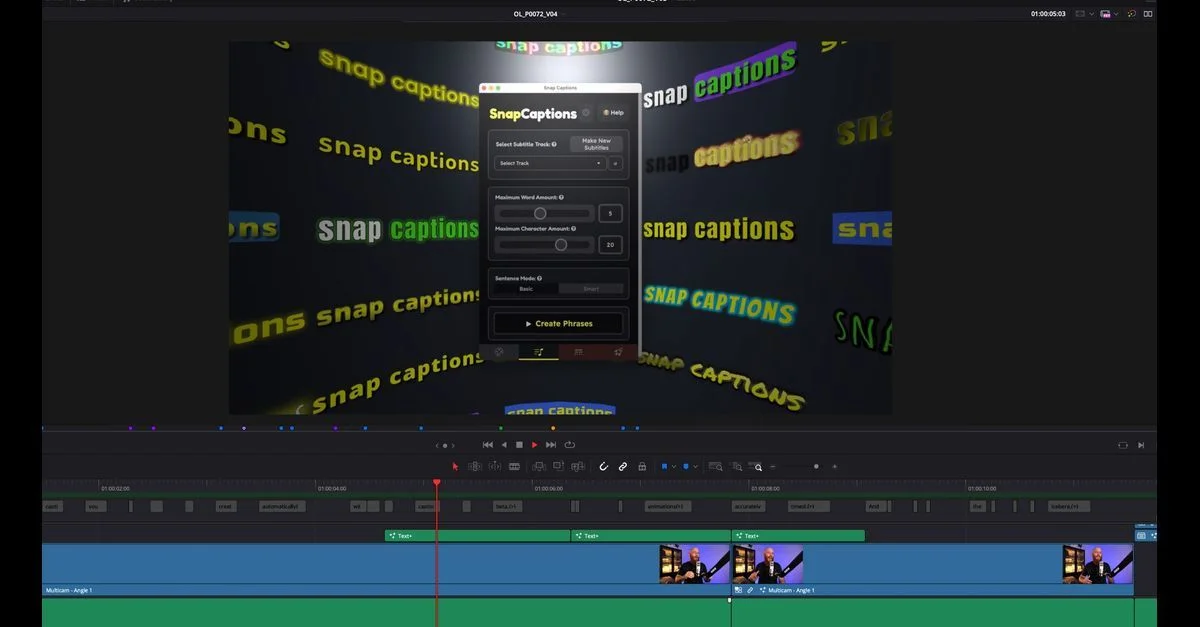
Snap Captions 2 does animated, bouncing captions for short-form video, and it does them well. It also bills $8 a month, or $150 once, and it does not translate a single line. That last point is what usually starts the search: a caption tool that cannot open your video to another language leaves the job half done. Caption Pro translates into more than 100 languages, shows you the transcript before anything lands on the timeline, and costs €49 once. One thing has changed since this page was first written: Resolve 21.1 moved Python scripting to the Studio version, so the edition you run no longer separates these tools. Below, Caption Pro sits next to AutoSubs and MagicSubtitles Pro.
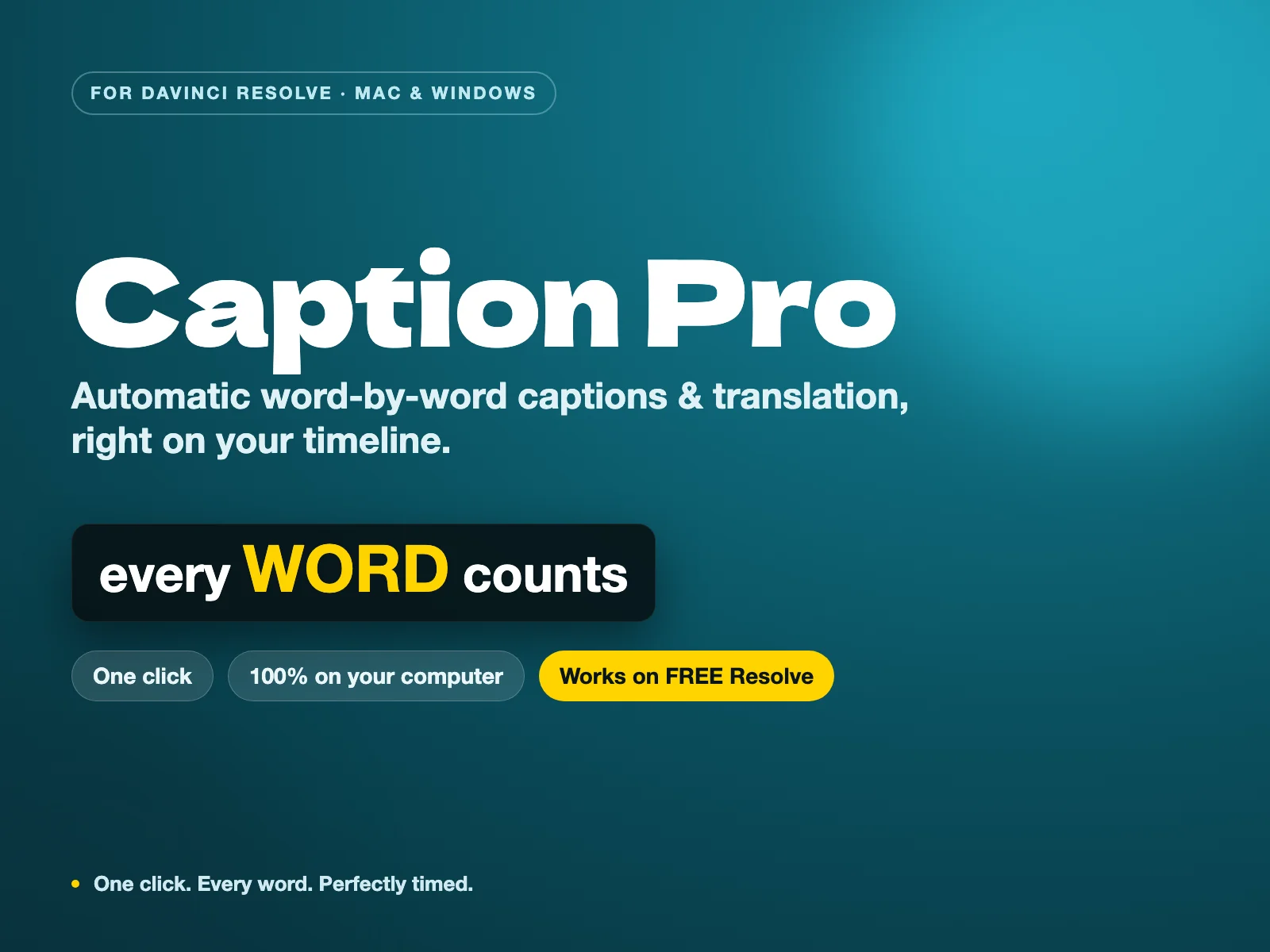
Caption Pro — Automatic word-by-word captions and translation for DaVinci Resolve
The only tool that combines local Whisper AI transcription, customizable word-by-word animated styles, and 100+ languages translation for a single perpetual payment — with zero subscription and 100% offline privacy.
Why look for a Snap Captions alternative
Two things send people looking. The first is the shape of the price: $8 a month, or $150 once, for a tool whose job is to place text on a timeline. The second is translation, which Snap Captions 2 does not do, so any delivery in a second language needs another tool on top of it. There used to be a third reason, and it is worth saying that it has gone. Snap Captions 2 needed DaVinci Resolve Studio for its full feature set, which sent free-edition editors looking for something that ran on their build. Since Resolve 21.1, published on 8 September 2026, moved Python scripting to the Studio version, every scripted caption tool on this page needs Studio, or a free install kept at 21.0.4 or earlier. The edition you run no longer picks the winner for you, so what is left to compare is what each tool actually does with your audio.
Alternatives that translate, and what each one needs
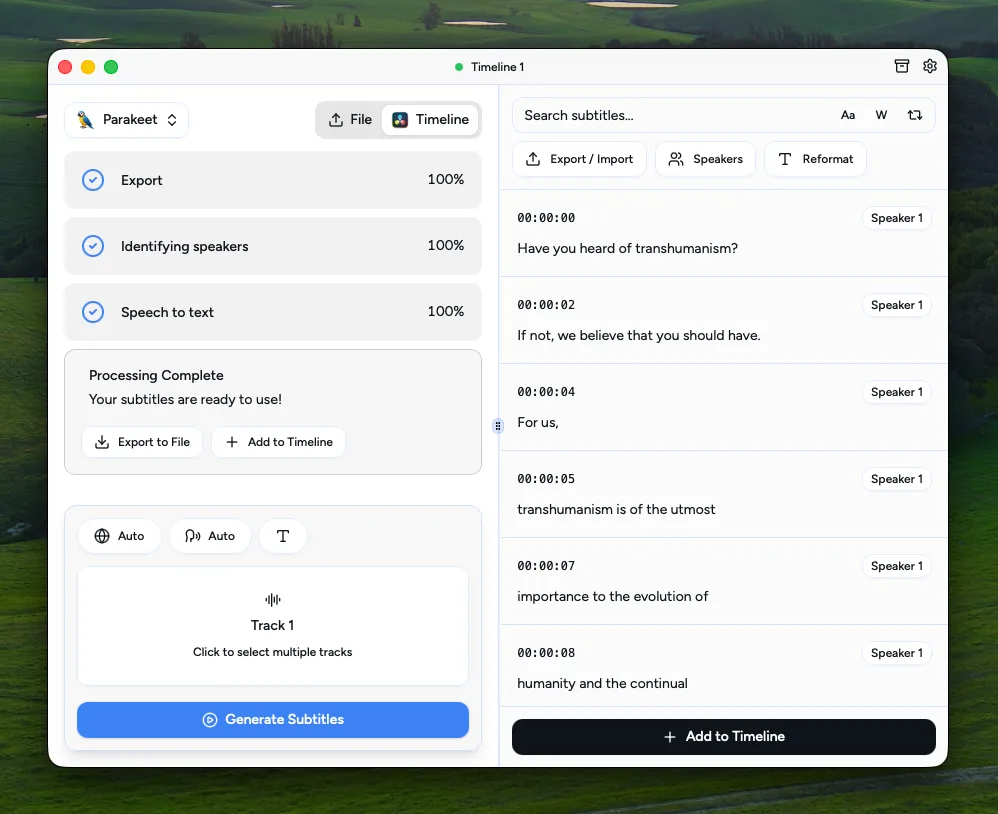
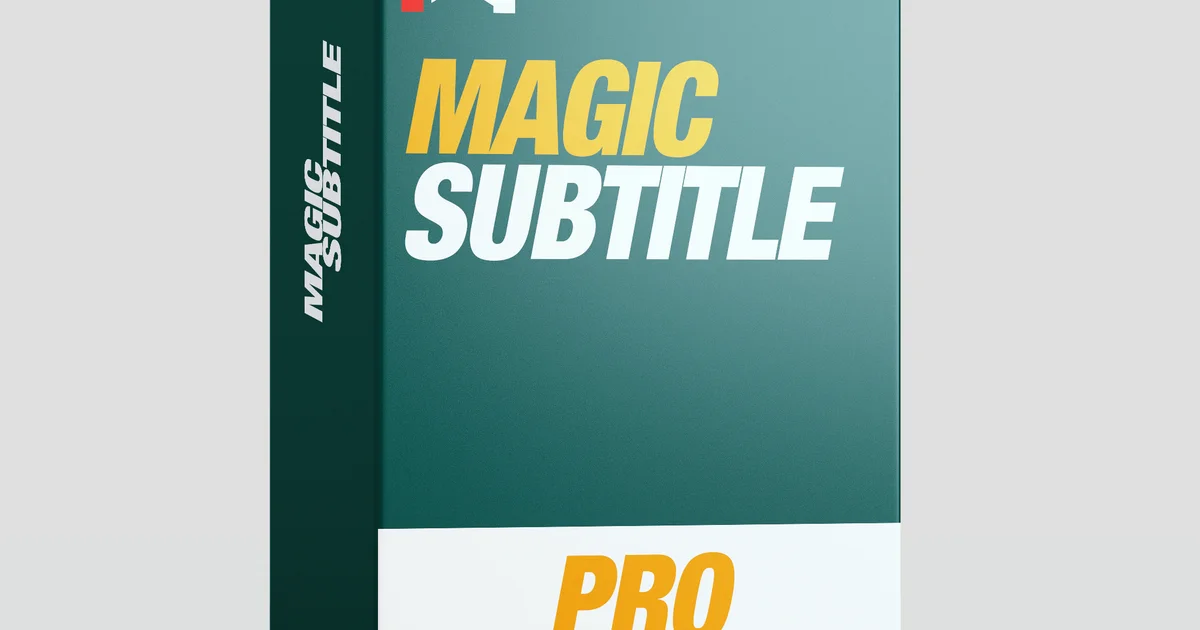
Caption Pro transcribes locally with Whisper, shows the transcript with uncertain words highlighted before a single caption is placed, styles each word with a karaoke or cumulative reveal, and translates into more than 100 languages. It runs on DaVinci Resolve Studio, any version, and on Resolve free up to 21.0.4. MagicSubtitles Pro also translates, from a preset library, and has always been Studio only. AutoSubs remains the free route, in exchange for the setup work, and I have not tested it on the free build of 21.1, so check it against your own install before planning a delivery around it. Whatever you pick here, the audio stays on your machine. For the full field, see the best DaVinci caption plugins roundup and the per-language subtitle guides.
| Feature | Caption ProBuy — €49.00 | Snap Captions 2 | AutoSubs | MagicSubtitles Pro |
|---|---|---|---|---|
| Price | €49 (perpetual) | Free, $8/mo, or $150 lifetime | Free (open-source) | Paid |
| Runs on DaVinci Resolve Free | Up to 21.0.4 only (from 21.1, only on Studio) | No (Studio only) | Up to 21.0.4, 21.1+ untested here | No (Studio only) |
| Translation | 100+ languages, built in | No | Yes, via models | Yes |
| Styling | 5 styles: karaoke, cumulative, pop-in | Animated social styles | Basic | Presets |
| Review before placing | Yes | Manual | Limited | Yes |
| Runs 100% locally | Yes | Yes | Yes | Yes |
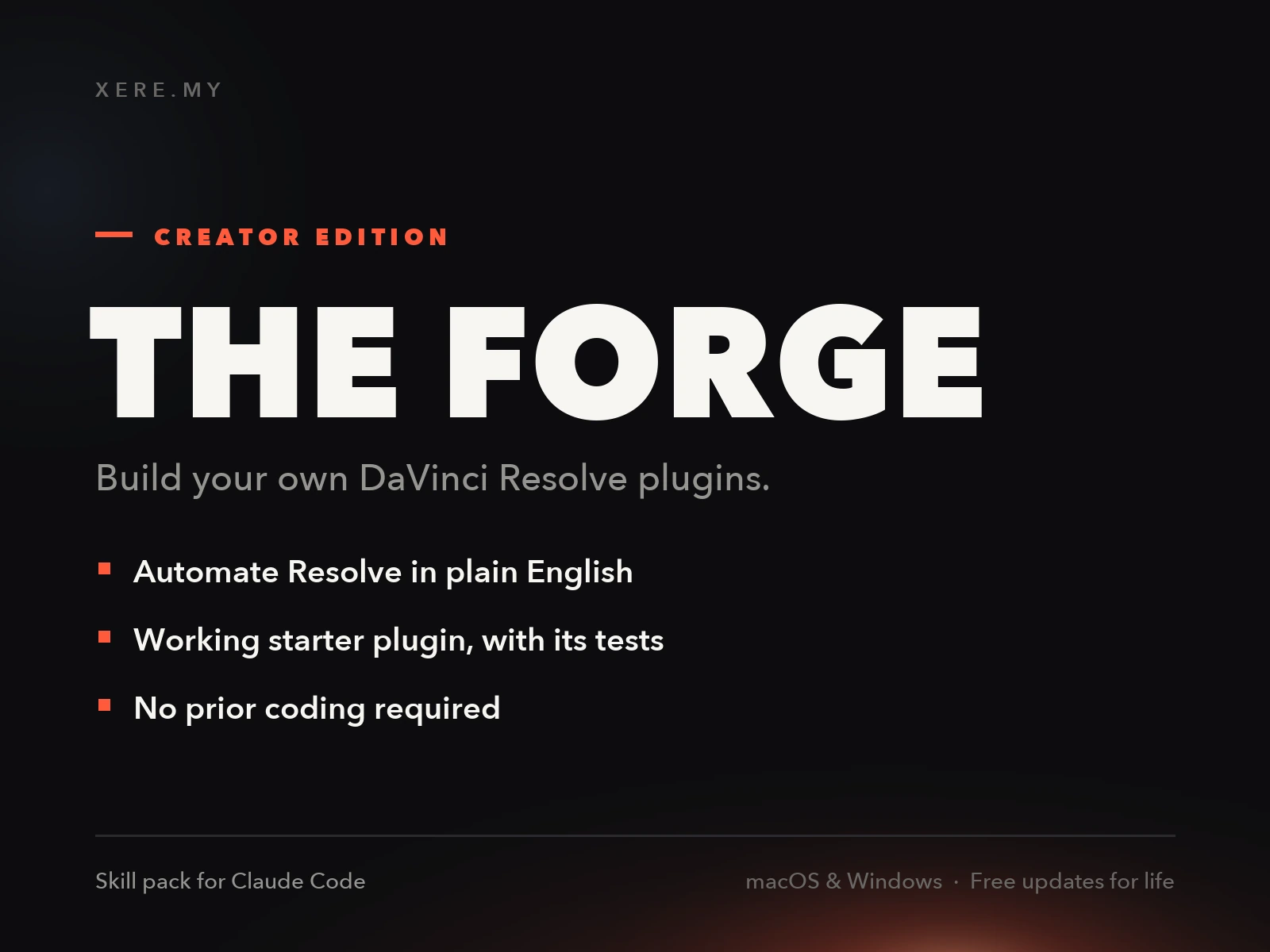
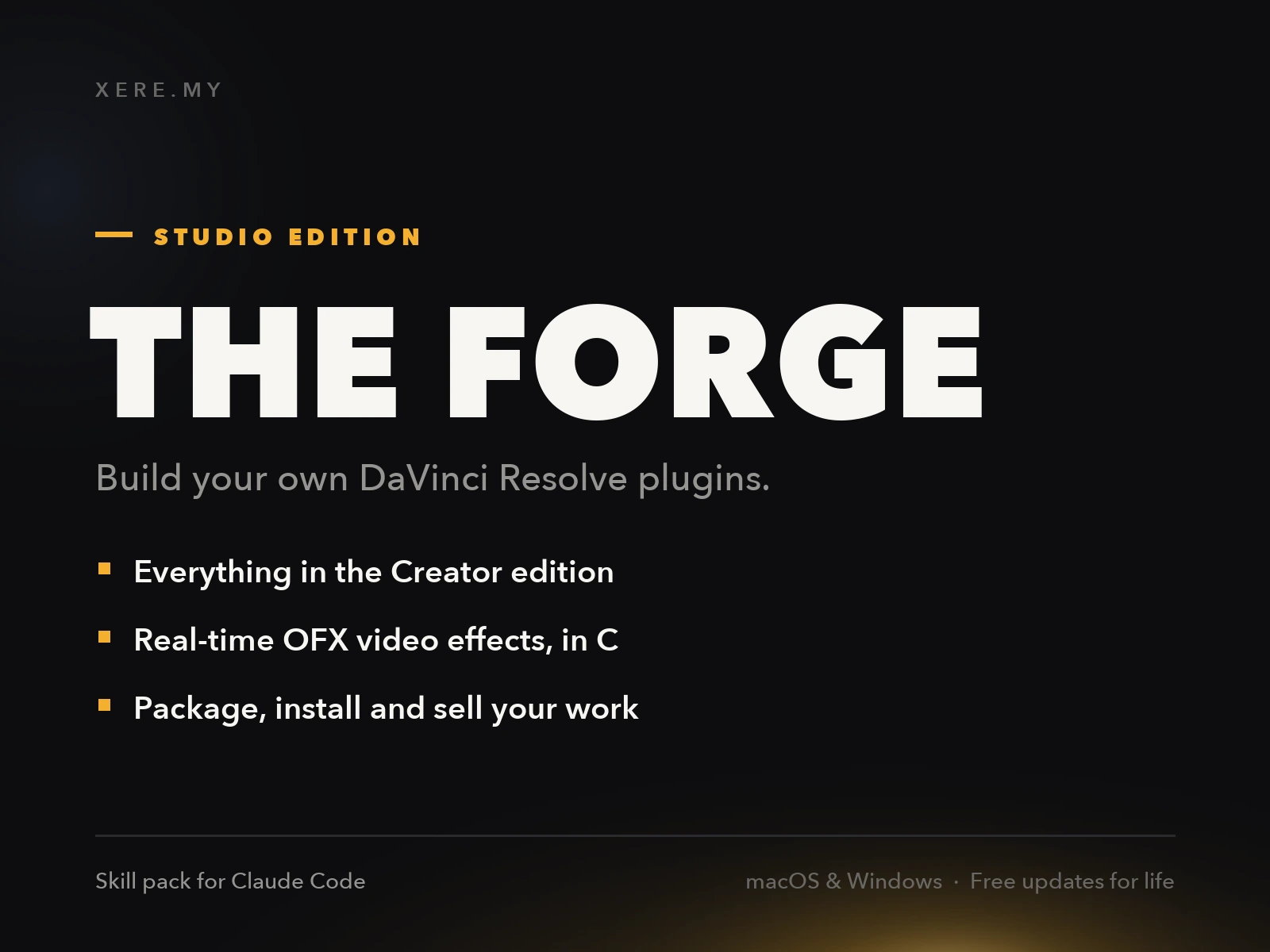
Stop buying plugins. Build your own.
Every plugin you buy solves someone else's problem. Through The Forge skill packs, you can teach Claude Code to write, test, and install custom DaVinci Resolve tools in plain English. Save money, learn the workflow, and own your tools forever.
Verdict: the best Snap Captions alternative
Caption Pro Winner
The pick when translation matters. €49 once, no subscription: it transcribes locally, lets you fix the transcript before placement, styles captions per word, and translates into more than 100 languages. It runs on DaVinci Resolve Studio, any version, and on Resolve free up to 21.0.4. If what you liked about Snap Captions was the look rather than the workflow, the five styles here are customizable from the panel without opening Fusion.
AutoSubs Best Free
The free, open-source route. It runs Whisper locally and costs nothing, in exchange for manual setup and basic styling. If price is the whole reason you are leaving Snap Captions, start here, and test it against your own Resolve install first: its behaviour on the free build of 21.1 has not been measured here.
MagicSubtitles Pro
A preset-driven subtitle tool that translates. It has always been Studio only, which since 21.1 is no longer the disadvantage it was. If you already run Studio and its presets match the look you are after, it is worth a look.
Snap Captions 2 (when it is still the right pick)
If your work is short-form social video and the bouncing animated look is the point, Snap Captions 2 is strong at exactly that, and nothing above copies it. The alternatives matter when you need translation, or when you would rather not carry a monthly bill for placing text.
For local subtitles with translation, Caption Pro is the best Snap Captions alternative: €49 once, per-word styling, more than 100 languages, and every step running on your own machine. It needs DaVinci Resolve Studio, or Resolve free up to 21.0.4, which since 21.1 is what any scripted caption tool needs. AutoSubs is the free choice if you accept the setup work and verify it against your own Resolve build. MagicSubtitles Pro translates from presets on Studio. Snap Captions 2 stays worthwhile when the animated social look is the goal and the subscription is not a problem.