This page contains affiliate links. We may earn a commission at no extra cost to you when you buy through them. Learn more
Best Organization & Automation Tools for DaVinci Resolve (2026)
Six tools currently cover organization and automation in DaVinci Resolve, and each one solves a different part of the problem: FireCut, Jumper, Tagger for Resolve, Creator Pro, Time Ledger, and Time Tracker. Tagger writes AI-generated keywords, descriptions, and shot types straight into Media Pool columns. Jumper turns your footage into a searchable index by visual content, spoken word, or face. FireCut goes further into automation, cutting silences and filler words, generating captions and chapters, and pulling B-roll and music, on top of its own Markers+ organization tool. Creator Pro is not a plugin at all: it is a project template that ships the media pool, smart bins, and timelines already organized before you import a single clip. Time Ledger and Time Tracker organize something none of the others touch: your own hours, tracked per project and exported as an invoice. We compared all six on price, whether AI processing happens locally or in the cloud, and DaVinci Resolve Free support.
Organization vs automation: two different jobs
Organization tools make existing footage easier to find. Tagger writes searchable keywords, descriptions, and shot classifications into the Media Pool, and builds keyword bins automatically so a large clip count becomes filterable in a few clicks. Jumper does the same job at a deeper level: type a plain-language description, a spoken phrase, or match a face, and it returns the matching shots across an entire library, all processed on-device. Automation tools change the footage itself. FireCut removes silences and filler words, adds captions and chapters, and generates a first-cut assembly, tasks that used to take a manual pass through the timeline. Reading the table with that split in mind matters, because a keyword tagger and a silence remover are not competing for the same job even though both fall under the same category.
The two that organize your time instead of your footage
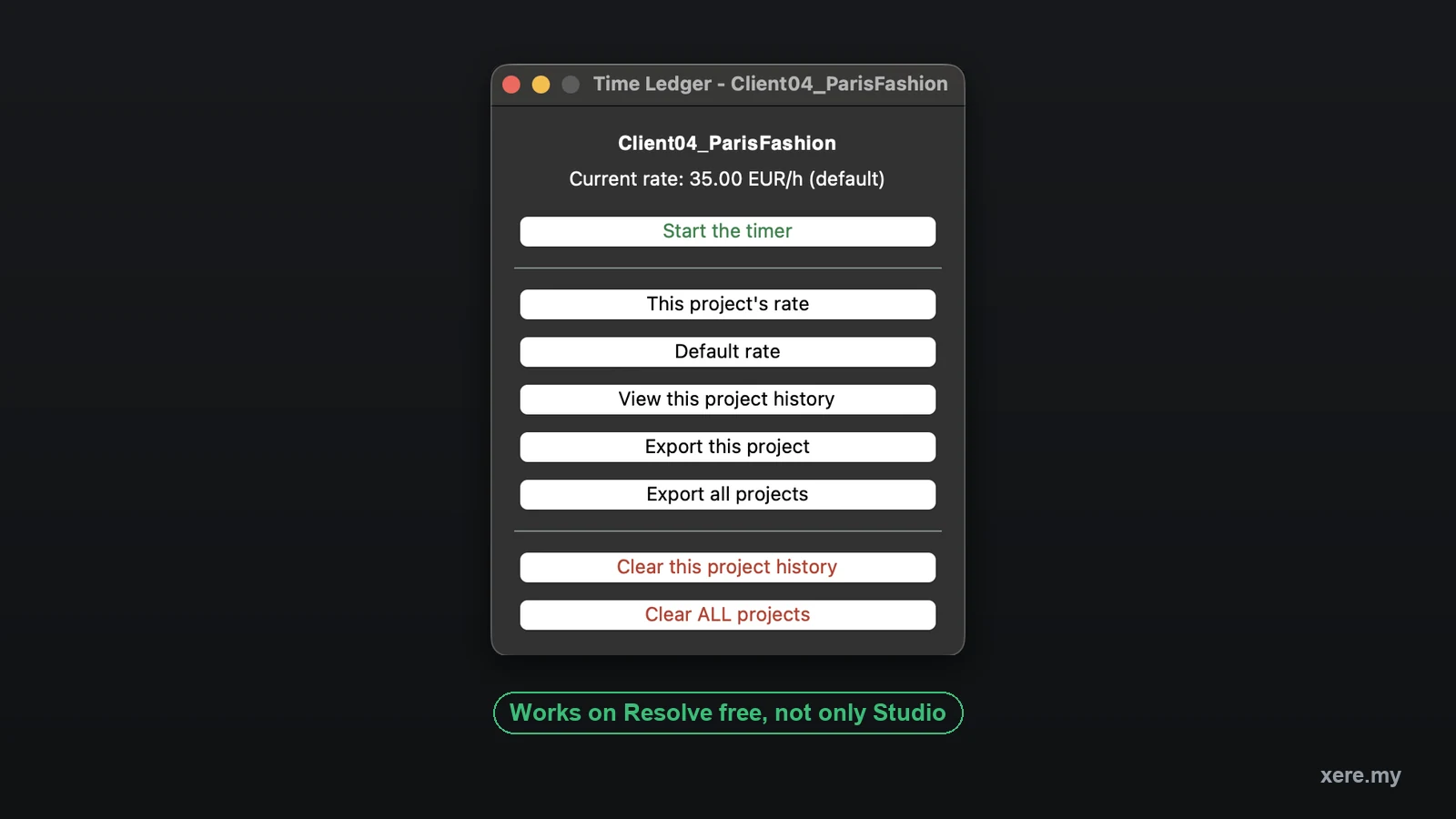
Time Ledger and Time Tracker belong in this category for a reason that only becomes obvious once a project is finished: the thing most freelancers cannot find afterwards is not a clip, it is how many hours the job actually took. Both keep a clock, an hourly rate, and a session history per Resolve project, both bank the time already worked when you switch project mid-session so a day spent across three clients does not land on one bill, and both export the result as a spreadsheet you can invoice from. Where the other four make footage findable, these two make your own time countable, and they are the only tools here aimed at what happens after the edit rather than during it. The differences are worth knowing before you pick one. Time Ledger costs $12, runs its live window on DaVinci Resolve Free as well as Studio, and its CSV prints the exact minutes beside every amount so a client can reproduce the total to the cent, but it is macOS only for now and counts until you stop it. Time Tracker costs $19.99, ships Mac and Windows builds, stops itself when you walk away and resumes when you come back, and draws a bar graph splitting your hours across the Edit, Color, Fairlight, and Deliver pages, which is the one thing here that tells you which part of the job is eating your margin. The catch is that the live window, the graph, and the idle detection are all in its Studio Edition: on Resolve Free you get start, stop, notes, and the export. Disclosure: Time Ledger is my own plugin, so weigh that verdict accordingly.
A pre-built template instead of an AI tool
Creator Pro sits apart from the three AI tools because it runs no AI at all. It is a DaVinci Resolve project template: install it once and every new project opens with an 8-bin, color-coded media pool, smart bins already configured for voice, music, and SFX, and 11 pre-configured timelines covering vertical, horizontal, and portrait formats. FireCut, Jumper, and Tagger organize footage you already imported, using AI to read, search, or clean it up after the fact. Creator Pro organizes the project itself before that footage arrives, so there is nothing to process, nothing uploads, and it works exactly the same offline as it does online. It is the pick for editors who want a consistent, structured workspace on every project without paying a subscription or trusting an AI model to sort their media pool correctly.
Local AI vs cloud AI
Jumper and Tagger both process footage locally. Jumper runs its visual search, speech search, and face recognition entirely on-device, so nothing uploads and nothing trains on your footage, which matters for unreleased work or anything under NDA. Tagger sends only a handful of low-resolution JPEG frames out for image analysis, discarded once processing finishes, and transcribes audio locally through Whisper. FireCut works differently: most of its AI features, captions, B-roll search, voiceover and music generation, run in the cloud and need an internet connection, though its free-tier tools (silence removal, audio splitting, Markers+) run without one. If keeping footage entirely on your machine is a requirement, Jumper, Tagger, or Creator Pro (which has no AI to begin with) are the tools built for that; FireCut trades that guarantee for a wider automation feature set.
Which ones run in DaVinci Resolve Free
FireCut, Creator Pro, and Time Ledger all run in DaVinci Resolve Free: FireCut through its free-tier tools, Creator Pro because a project template has no scripting dependency to begin with, and Time Ledger because its live window works on both versions. Time Tracker runs on Free too, but only as its Free Edition, since Blackmagic restricted on-screen script windows to Studio from Resolve 19.1 onward, so the live timer, the per-page graph, the idle detection, and the compact mode all sit behind Studio. Tagger for Resolve and Jumper require DaVinci Resolve Studio outright, because they depend on scripting API access the free version does not expose. If you are editing in Resolve Free and want AI automation, a structured workspace, or billable time tracking without upgrading, FireCut, Creator Pro, and Time Ledger are the three that lose nothing.
| Feature | FireCut | Jumper | Tagger for Resolve | Creator ProBuy — €29.00 | Time LedgerBuy — €12.00 | Time Tracker |
|---|---|---|---|---|---|---|
| Price | Free / $12.99–$49.99 per month | $183–$647 (lifetime) | Free (20 files) / $99 (lifetime) | $29 (one-time) | $12 (one-time) | $19.99 (one-time) |
| Core job | Editing automation: silences, fillers, captions, chapters, B-roll | AI search: visual, speech, and face recognition | AI metadata tagging written into Media Pool columns | Pre-built project template: color-coded media pool, smart bins, timelines | Billable time tracking per project, exported as a CSV invoice | Billable time tracking per project, plus a breakdown by Resolve page |
| AI processing | Cloud (free-tier tools run without internet) | Fully local, on-device | Local, except a few discarded low-res frames | None, manual structure | None, you start and stop the clock | None, but Studio stops the clock when you walk away |
| Runs in DaVinci Resolve Free | Yes (free-tier tools) | No (Studio only) | No (Studio only) | Yes | Yes | Yes (Free Edition, no live window) |
| Other NLEs | Premiere Pro | Final Cut Pro, Premiere Pro, Avid Media Composer, standalone app | DaVinci Resolve only | DaVinci Resolve only | DaVinci Resolve only | DaVinci Resolve only |
| Platforms | macOS, Windows, Linux | macOS, Windows | macOS, Windows | macOS, Windows | macOS (Windows untested) | macOS, Windows |
| Best for | Automating the edit itself, free tier included | Searching hours of footage across multiple editors | Tagging a Media Pool without leaving Resolve | A structured workspace from the first import, no AI | Knowing what a job cost you, and invoicing it | Seeing which Resolve page eats the hours, then billing them |
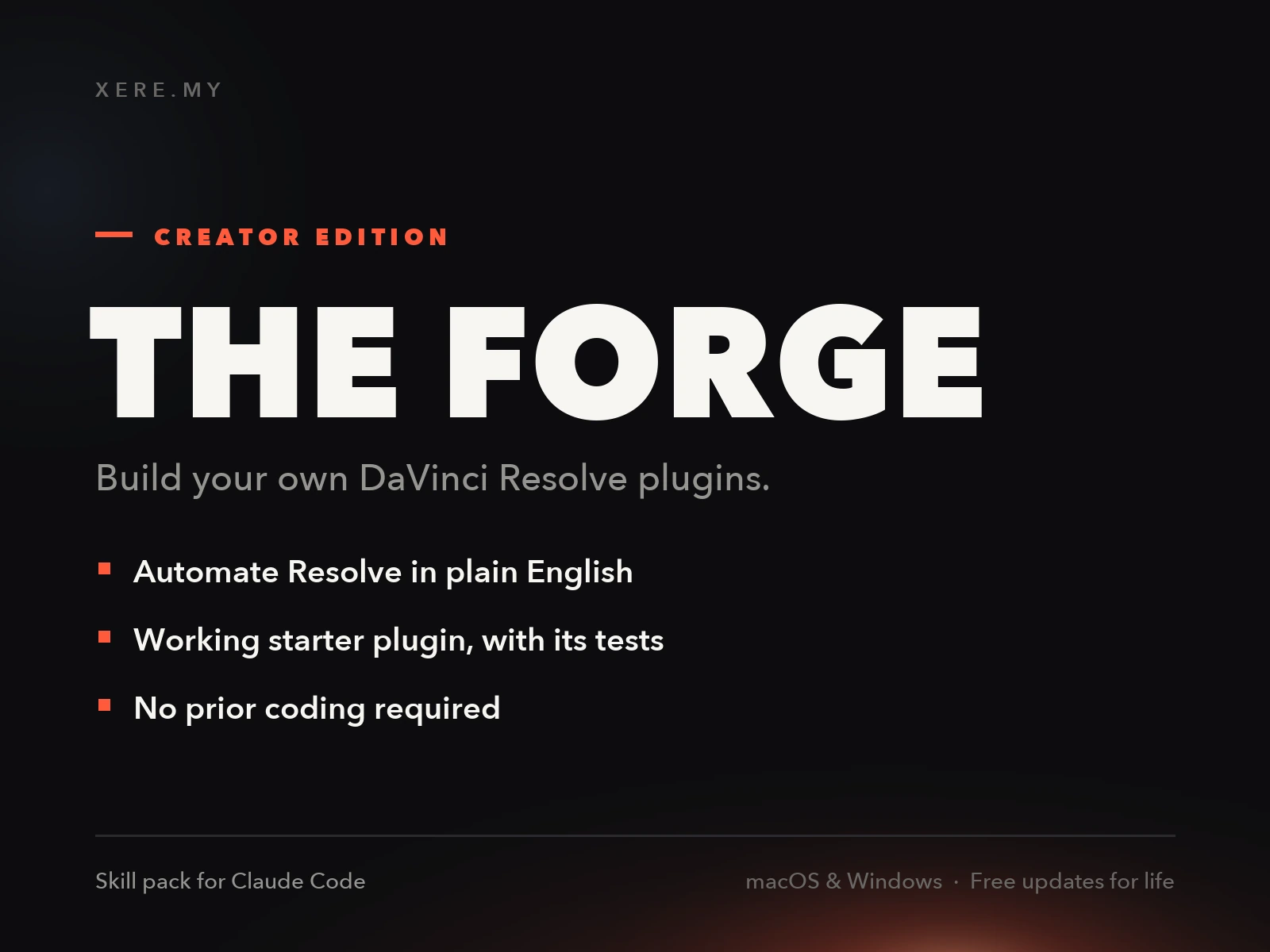
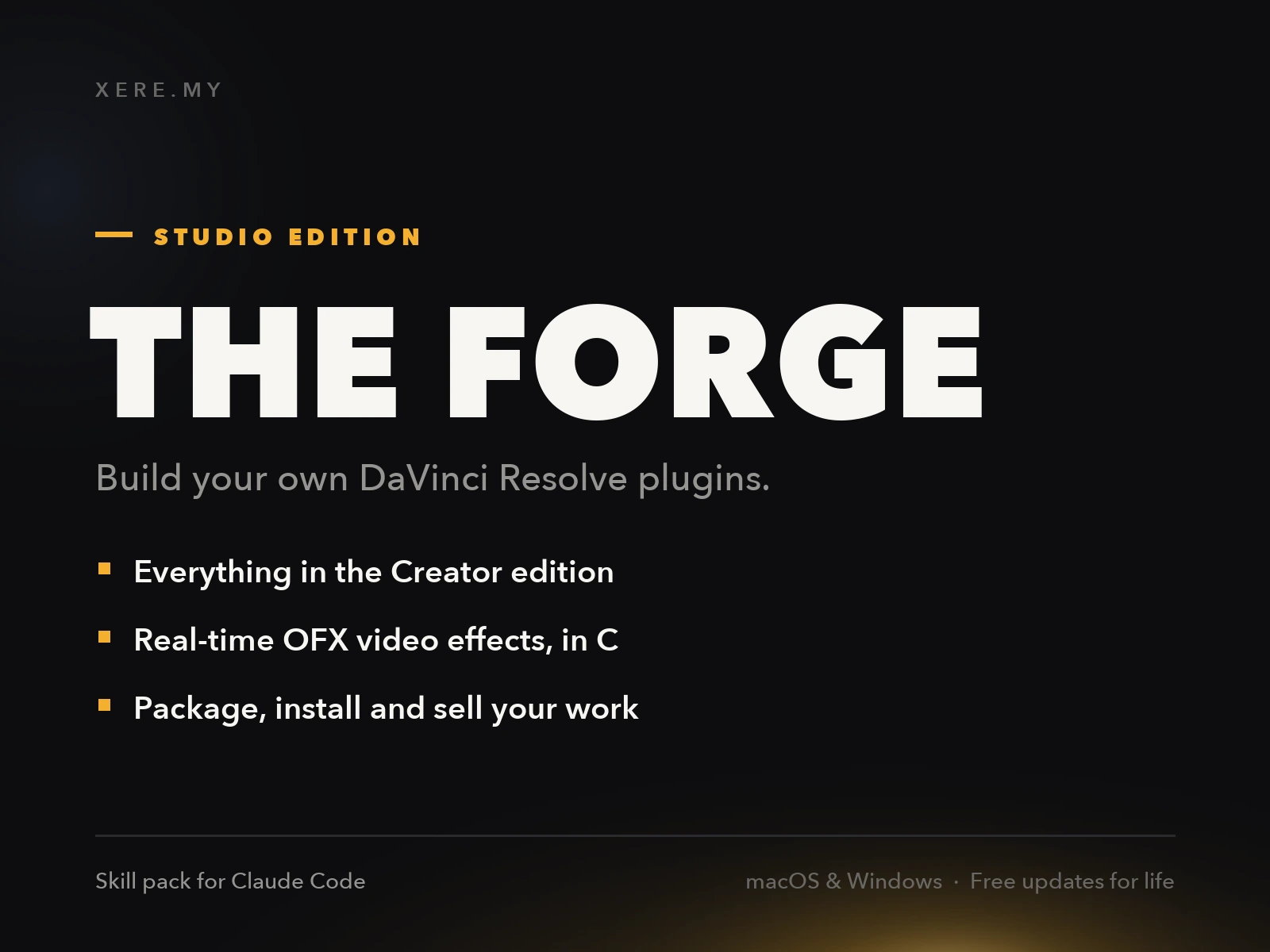
Stop buying plugins. Build your own.
Every plugin you buy solves someone else's problem. Through The Forge skill packs, you can teach Claude Code to write, test, and install custom DaVinci Resolve tools in plain English. Save money, learn the workflow, and own your tools forever.
Verdict: the best organization and automation tools for DaVinci Resolve
FireCut: the widest automation suite, with a real free tier Winner Best Free
FireCut adds AI editing tools directly to the DaVinci Resolve timeline. Its free tier runs on both Resolve Free and Studio, with unlimited silence removal, multichannel audio splitting, and Markers+ for organizing a timeline with custom markers, no subscription required. Paid plans build outward from there: Captions at $12.99 a month covers 90+ languages with word-level transcript editing; Pro at $16 a month adds filler, repetition, and profanity removal plus B-roll, SFX, and music search through Storyblocks; Max at $49.99 a month adds AI voiceover, image, and music generation. Most of these features run in the cloud and need an internet connection, which is the trade-off for covering more ground than a pure organization tool. For an editor who wants both a real free tier and a path to full automation as the budget allows, FireCut covers the most.
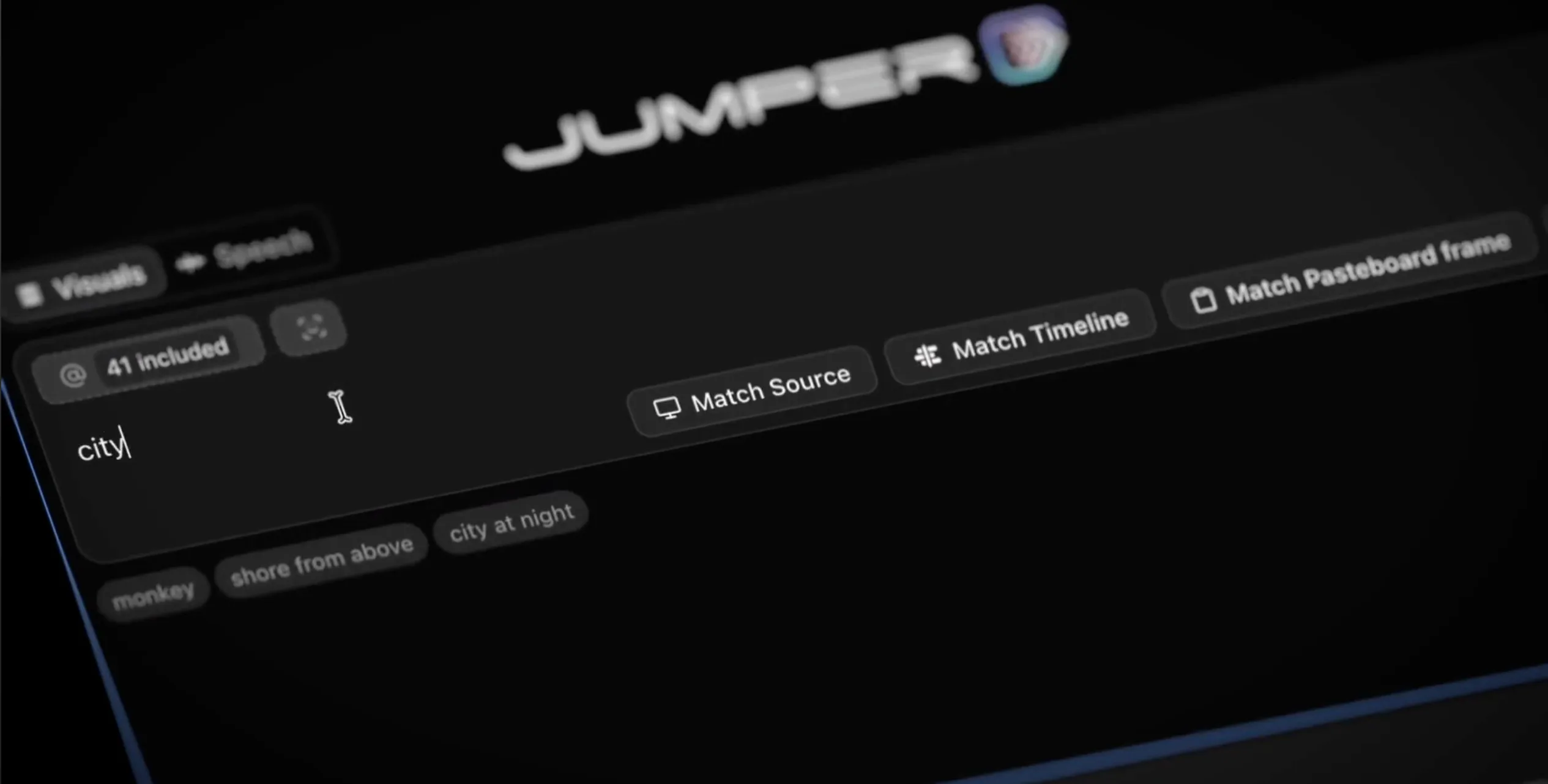
Jumper: the deepest search, fully local Runner-up
Jumper turns a footage library into a search bar. Visual search finds shots by a single keyword or by matching a shot you already like; speech search finds a spoken phrase across 111 languages; Jumper Pro adds face recognition that indexes every person across hours of footage. All of it runs on-device, nothing uploads, which matters for documentary, archive, or NDA-bound work. It also reaches further than Resolve alone, with integrations for Final Cut Pro, Premiere Pro, and Avid Media Composer plus a standalone app for ingesting footage before a project exists. The cost is a lifetime license from $183 to $647 for the Pro tier, and it needs DaVinci Resolve Studio, since the free version lacks the scripting API it depends on. For editors sitting on large, unorganized libraries, especially documentary and unscripted work, it solves a problem the other two tools do not attempt.
Tagger for Resolve: metadata that lives in Resolve's own columns
Tagger analyzes every clip in a Media Pool, no timeline required, and writes the results into Resolve's standard Keywords, Description, Shot Type, and Scene columns. A full pass runs in under 10 seconds per clip, spoken audio gets transcribed locally through Whisper and folded into the keyword list, and every keyword becomes a keyword bin automatically. It reads camera manufacturer, model, and color space from file metadata too, so an ARRI or S-Log3 bin appears without typing anything. It needs DaVinci Resolve Studio and costs a one-time $99 after a free tier covering the first 20 files. It is narrower than Jumper, no cross-app search or face recognition, but the metadata writes directly into Resolve's own fields rather than a separate index, which keeps a project searchable with Resolve's native Smart Bins alone.
Creator Pro: organization built before you start editing
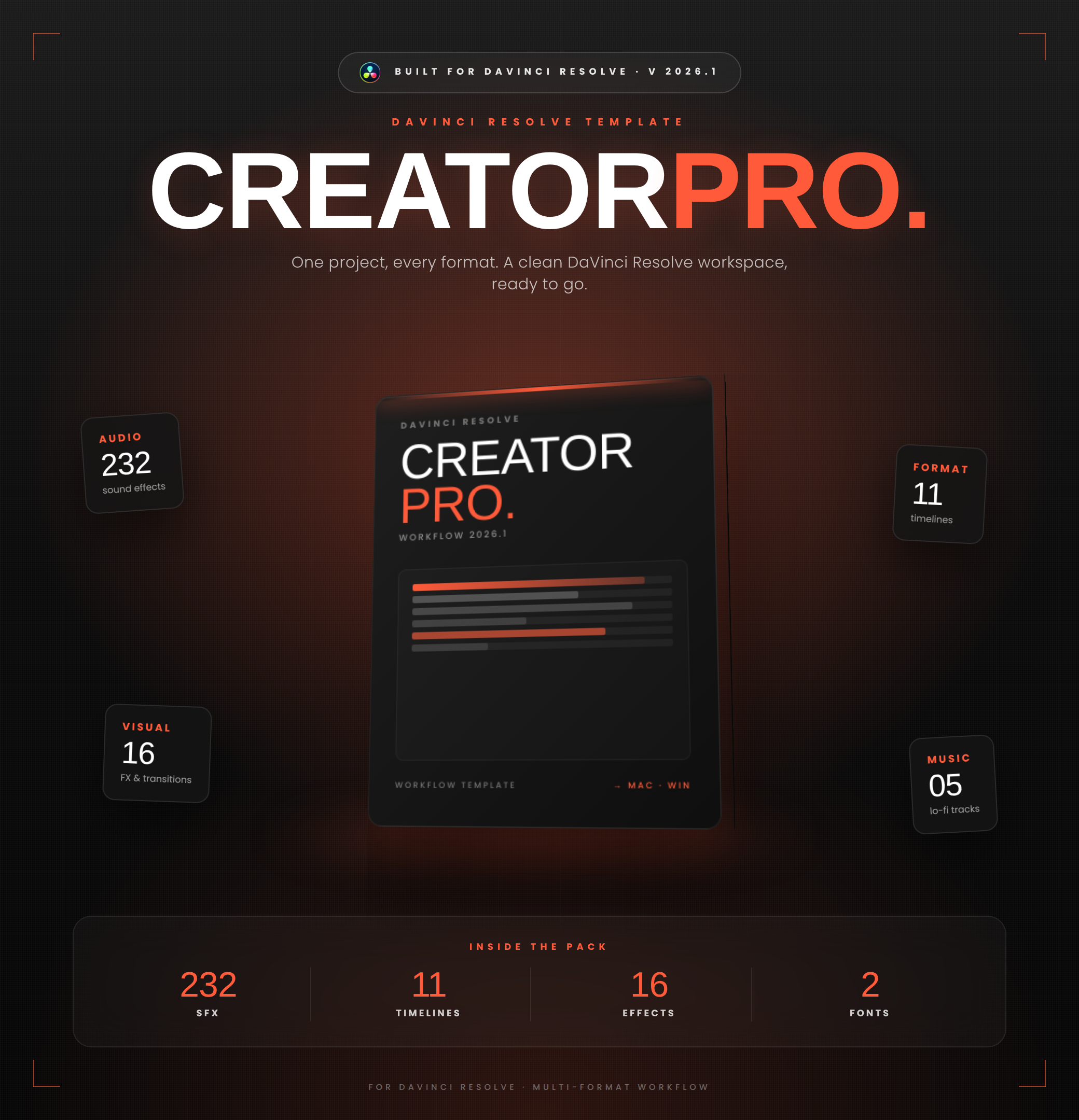
Creator Pro takes a different approach from the other three AI tools: it is not a plugin and it runs no AI. It is a ready-to-install DaVinci Resolve project template that replaces the media pool, bin, and timeline structure you would otherwise rebuild by hand on every new project. The media pool ships with 8 color-coded top-level bins and smart bins already set up for voice, music, and SFX, importable in one click through the included .drb file. On top of that structure sit 11 pre-configured timelines covering vertical, horizontal, and portrait formats at 24, 30, and 60 FPS, plus 232 royalty-free sound effects and 16 drag-and-drop transitions that need no Fusion keyframing. Where FireCut, Jumper, and Tagger organize footage after the fact with AI, Creator Pro organizes the project itself before a single clip is imported. It costs $29 once, runs on both DaVinci Resolve Free and Studio, and needs no internet connection, since nothing in it depends on AI.
Time Ledger: the hours behind the project, not the clips inside it
Time Ledger is the only tool in this comparison that ignores your footage completely. It opens a small window inside Resolve holding a clock, an hourly rate, and a session history for the project you have open, and it follows Resolve: switch project mid-session and the time is banked against the job you were on before a new clock starts, so a day split across three clients does not end up on one invoice. Rates work on two levels, a default that covers every project and an override for the client who pays differently, and whichever applies is frozen into each session at the moment you start it, so raising your rate never reprices work you already billed. The export is where it earns its keep: a CSV that names the project on every row and publishes the exact minutes beside each amount, so a client can divide by 60, multiply by the rate, and land on the total to the cent. A second export puts every project you have ever tracked into one table for working out where a year actually went. It costs $12 once, the live window runs on DaVinci Resolve Free as well as Studio, and nothing leaves your machine. The catch worth knowing: it is macOS only for now, and it counts until you stop it, with no idle detection beyond a prompt if a timer has been running more than eight hours.
Time Tracker: the only one that shows where the hours went
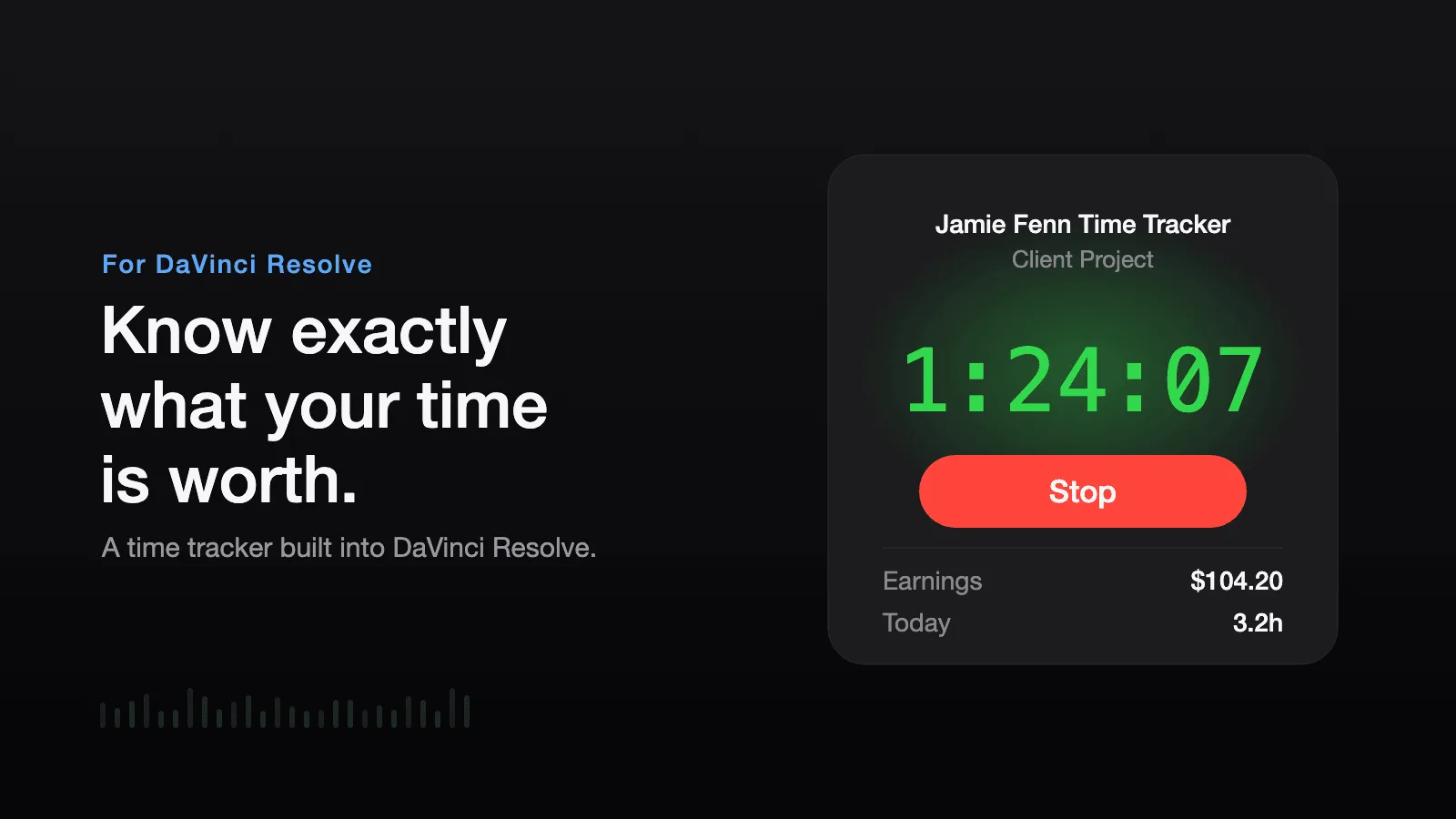
Time Tracker, by editor Jamie Fenn, is the other tool here that counts your hours instead of your clips, and it answers a question none of the rest do: not just how long the job took, but which part of it took the time. On the Studio Edition a live bar graph splits your session across the Edit, Color, Fairlight, and Deliver pages, render time included, so an eleven-hour job that turns out to be seven hours of grading changes what you quote for the next one. The same edition stops the clock when you step away, crediting time only up to your last action, then picks up again when you start working, and shrinks to a floating widget beside the timeline. It tracks a separate timer, rate, and history per project, banks the old session when you switch project, saves state to disk every second so a crash loses nothing, and keeps each session at the rate that was active when you worked it, across more than 20 currencies. The export is a spreadsheet of every session with dates, hours, rates, earnings, and notes. Install is one file dropped into Resolve's Scripts folder, with illustrated Mac and Windows manuals, and nothing leaves your machine. It costs $19.99 once and includes both editions. Two things to weigh: everything that makes it feel live, the window, the graph, the idle detection, needs DaVinci Resolve Studio, because Blackmagic limited on-screen script windows to Studio from Resolve 19.1, and there is no trial. It also sells in bundles with a pricing playbook and a rate calculator if the number you are unsure about is the rate rather than the hours.
FireCut wins on range: it is the only one of the six with a genuine, unlimited free tier, it runs in DaVinci Resolve Free as well as Studio, and its paid plans grow from organization (Markers+) into full editing automation (silences, fillers, captions, B-roll) as the budget allows. Jumper is the runner-up and the pick for anyone whose real problem is search, not editing automation: fully local visual and speech search across hours of footage, with face recognition and cross-app support that neither FireCut nor Tagger offer. Tagger for Resolve is the narrowest of the AI tools, but its $99 one-time price and metadata that writes directly into Resolve's own Media Pool columns make it a fit for editors who just want a searchable project without an external index or a subscription. Creator Pro does not compete on the same terms, since it runs no AI, but for editors who want a color-coded, smart-bin media pool and a set of ready timelines on every project without a subscription or an internet connection, it solves the organization half of this comparison on its own. Time Ledger sits outside the comparison in a different way again: it organizes your hours rather than your footage, and at $12 it is the cheapest thing here by a distance. None of the first four will tell you what a finished job actually cost you, which is the number a freelancer needs before quoting the next one. Time Tracker answers that same question for $19.99, and on DaVinci Resolve Studio it answers a harder one on top: its per-page graph shows whether the hours went to editing, grading, or audio, and it stops itself when you leave the desk. Pick it over Time Ledger if you are on Studio, on Windows, or want that breakdown; pick Time Ledger if you are on Resolve Free, where its live window still runs, or want the cheaper option with minute-level detail on the invoice. Time Ledger is my own plugin, which is the reason that last sentence names what each one is actually better at rather than declaring a winner.