Caption Pro v1.3: Review and Correct Your Captions Before They Hit the Timeline
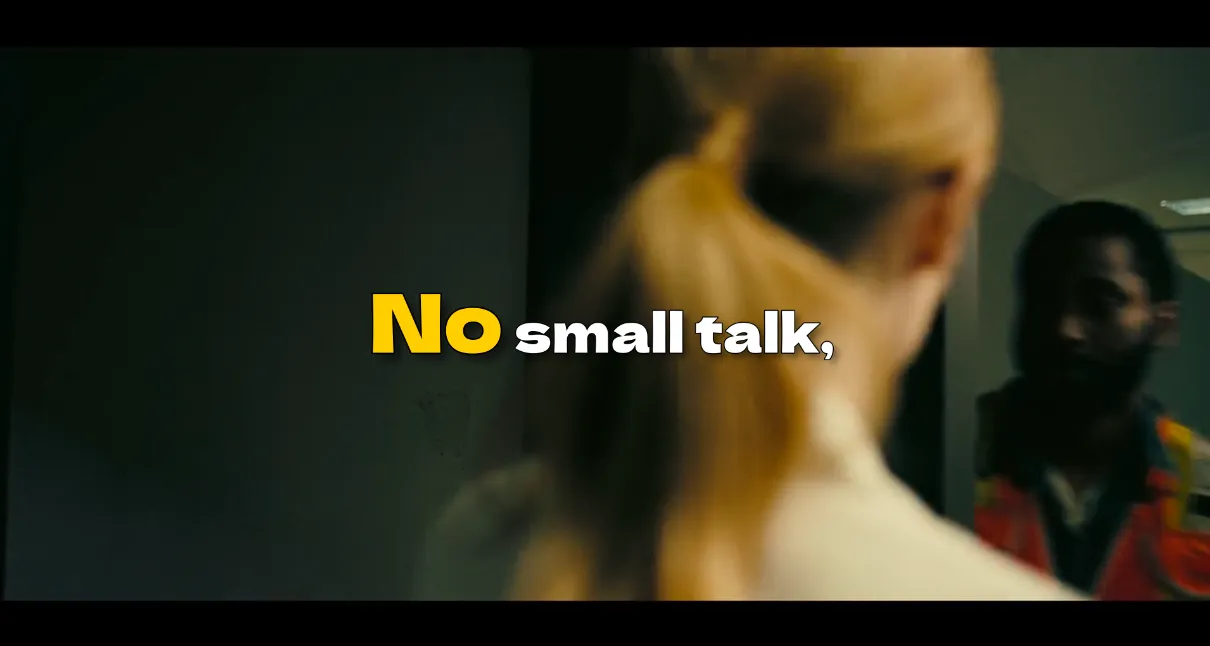
Recently, I wrote about why I built Caption Pro, my tool for getting automatic word-by-word captions and translation inside DaVinci Resolve without a subscription or a trip to a cloud service. Since then I've been using it on my own edits and continued to work on it.
I was actually about to ship v1.2 when I got pulled into building something bigger, so I held everything back and released it all at once. That means this update jumps straight from v1.1 to v1.3, and you get two releases worth of features in one download. Here's what changed and why.
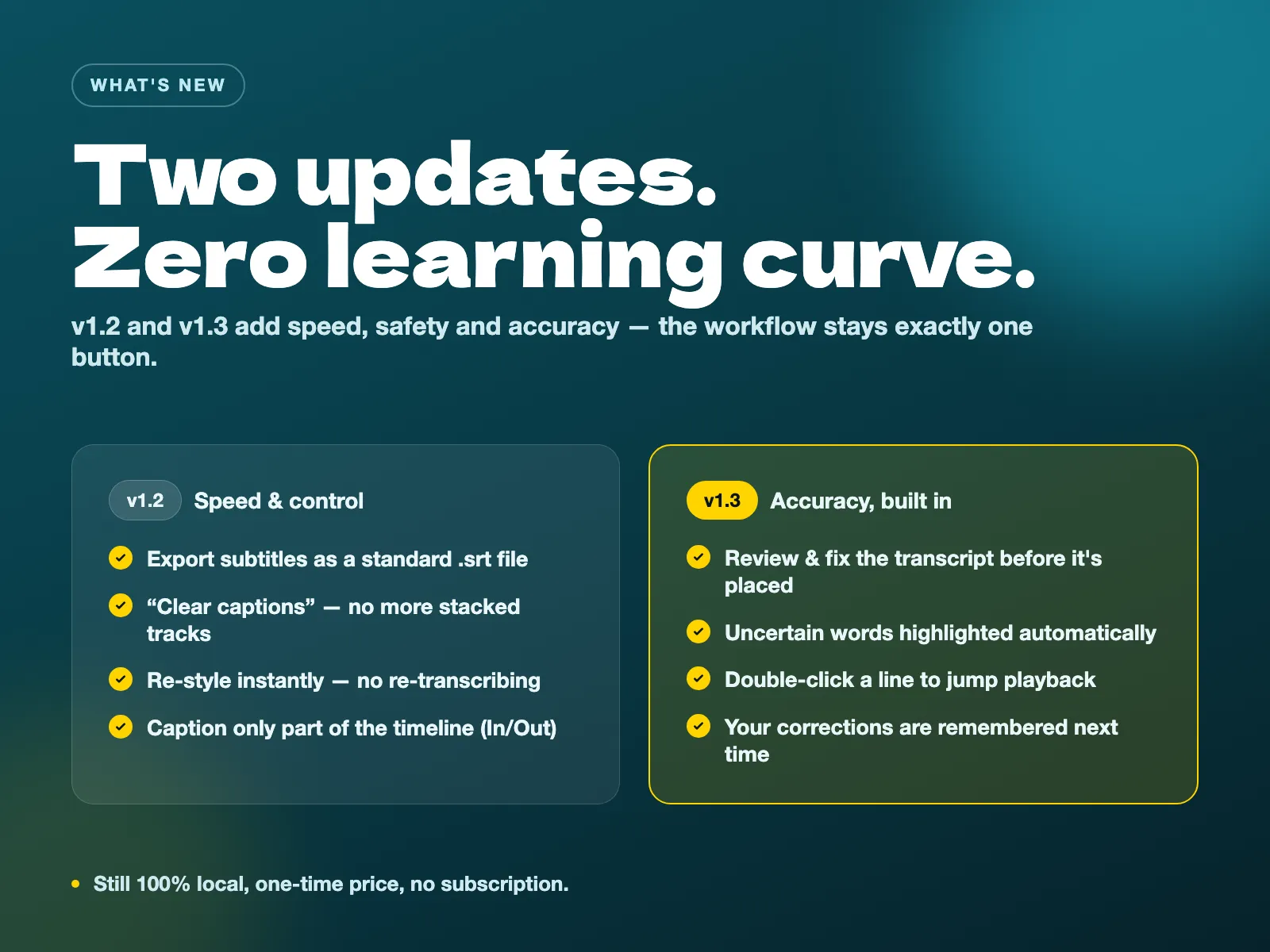
The big one: review and correct before placement
Whisper, the AI that powers the transcription, is excellent. It's also not perfect. Proper nouns, technical terms, and strong accents are exactly the kind of thing it occasionally gets wrong, and until now the only way to fix a mistake was to place the captions, find the bad word on the timeline, and edit the Text+ layer by hand. On a long clip that adds up.
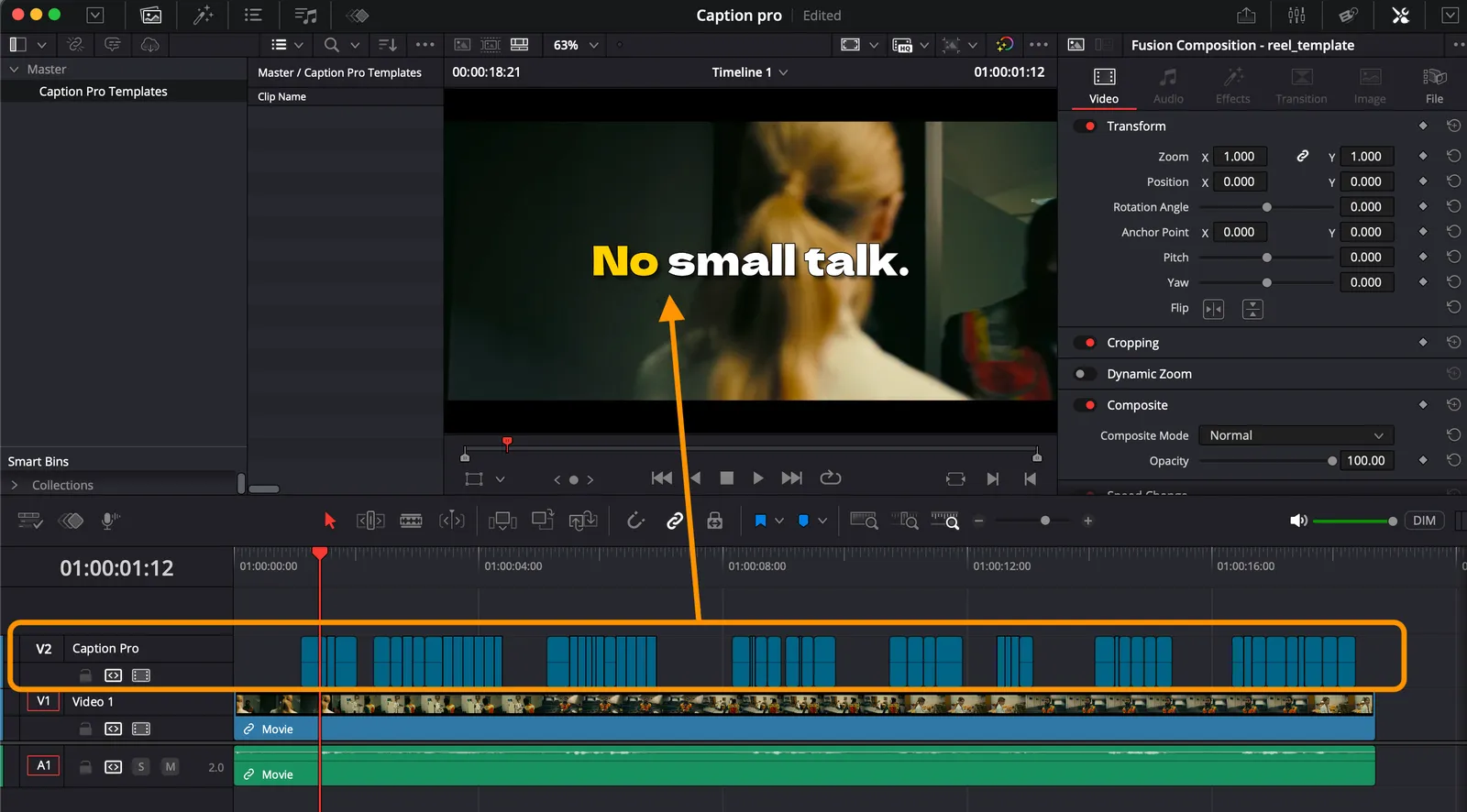
Caption Pro now shows you the full transcript before it places anything. You read it in the window, fix what needs fixing sentence by sentence, and only then send it to the timeline. The part I care about most: when you correct one sentence, only that sentence is touched. Everything else keeps its exact, frame-accurate Whisper timing. You're fixing the words, not disturbing the sync.
Three things make that review screen fast instead of tedious. Every word the AI wasn't confident about is highlighted automatically, so your eye goes straight to the likely problems instead of re-reading the whole transcript. If you're not sure about a word, you double-click the line and Resolve's playhead jumps to that exact moment in the video, so you can hear it again without leaving the window. And your corrections are remembered: regenerate with a different style later and the fixes come back on their own, so you never fix the same mistake twice.
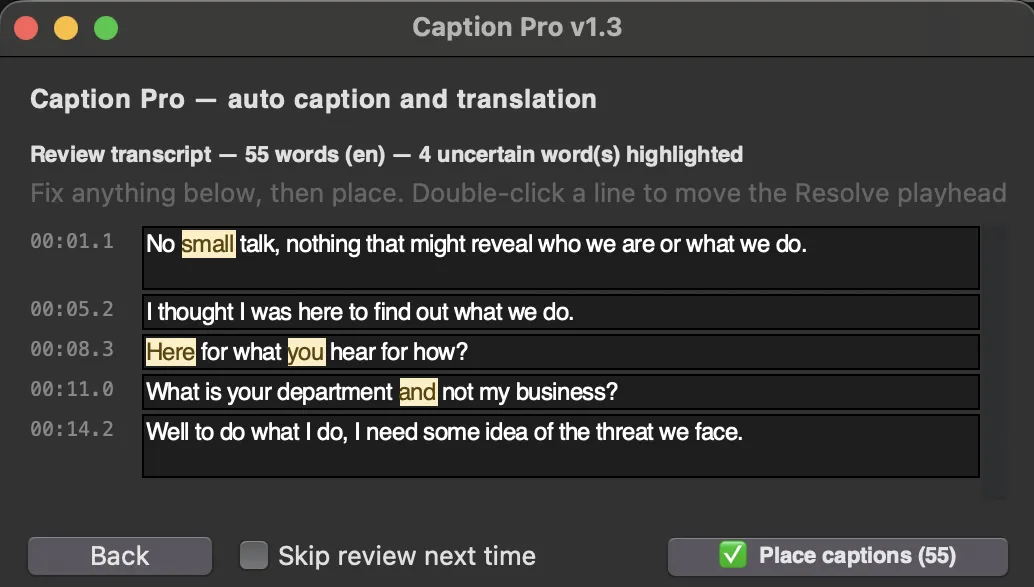
There's a clean interaction with translation here too. The review screen always shows the video's original language, because that's where corrections belong. The translation then runs on your corrected text, so the captions that land on the timeline are properly translated instead of carrying the original mistake into another language.
If you'd rather not slow down, there's a "Skip review next time" checkbox that returns you to the old one-click flow. You can turn it back on from the Advanced tab whenever you want it.
Near-instant regeneration
This one changed how I work more than I expected. Caption Pro now remembers your timeline's transcription for the session. As long as the audio hasn't changed, switching to a different style skips the audio analysis and transcription completely, and the new captions land in seconds. I can try karaoke, then cumulative, then a different segment length and color, three looks in about a minute, instead of waiting for a full pass each time.
Replace, compare, or clear, on your terms
Pressing Generate when captions already exist used to be a slightly nervous moment. Now it asks what you want: replace the existing captions, which is the usual one-click choice, or keep them and put the new style on a track above so you can compare two looks side by side, or cancel. Nothing gets stacked by accident, and nothing is deleted without your confirmation.
There's also a Clear captions button that empties the caption track in one click, with a confirmation showing exactly how many clips will be removed. Your actual edit underneath is never touched.
SRT export and partial timelines
Two more workflow things I needed myself. You can now export your captions as a standard .srt file straight from the window, ready for YouTube, archiving, or any player. The export uses whatever segmentation you have selected at that moment, so you can re-cut the same transcription into longer or shorter lines without regenerating anything.
And you can caption just part of a timeline. Set In and Out points with the I and O keys before generating, and Caption Pro transcribes and captions only that range. Remove the marks and it covers the whole timeline again. Useful when you only need to redo one section, or when you're working on a long piece and want to test on a short stretch first.
Still local, still one payment
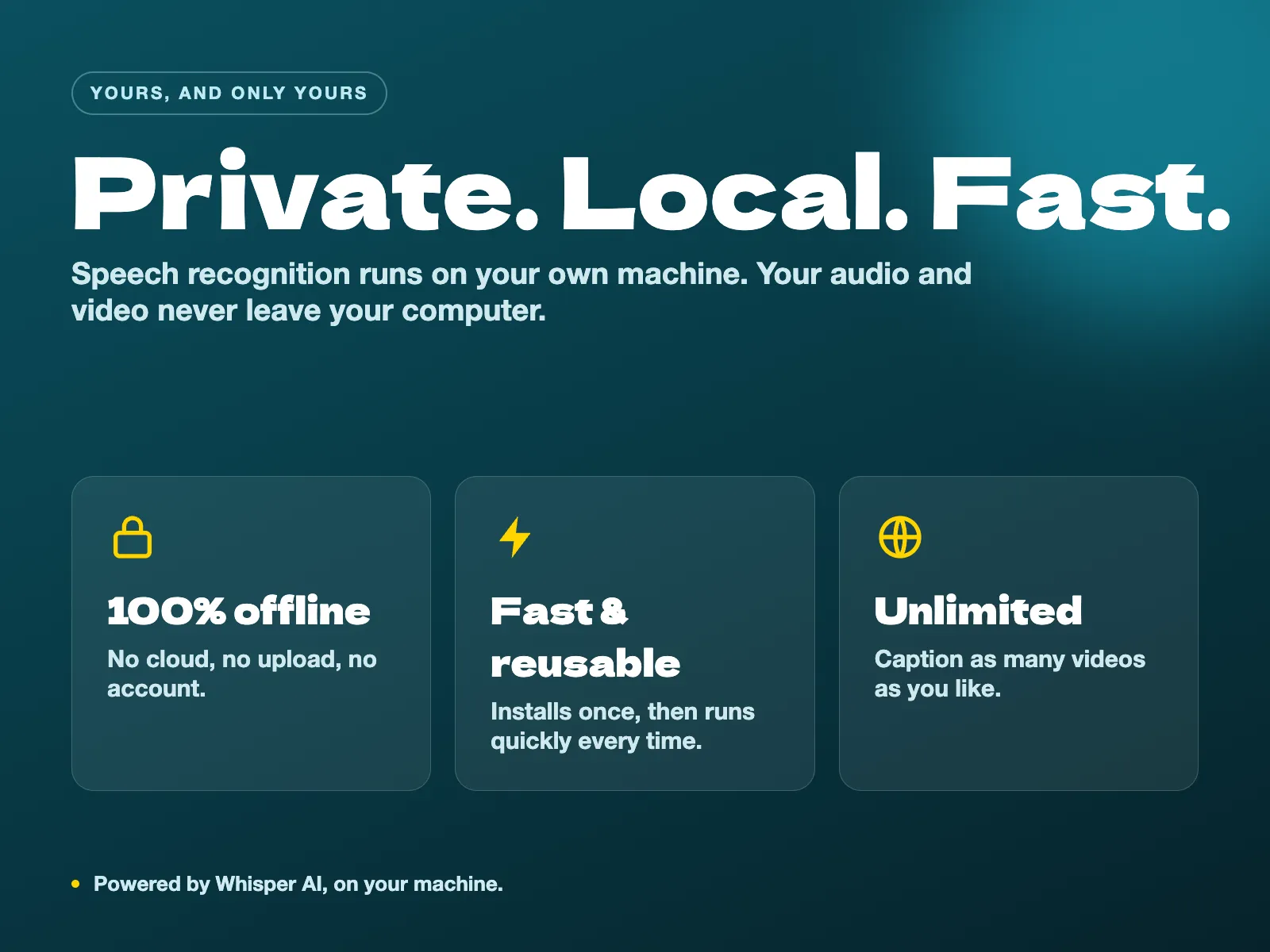
None of this changes the two things that made me build the tool in the first place. Everything runs locally through a local install of Whisper, so your footage and audio never leave your machine, nothing is uploaded, ever. And it's still a one-time payment with no subscription and no per-minute fee, working on both the free and Studio versions of DaVinci Resolve.
How to update
The update is free if you already own Caption Pro. Download the new zip from your Lemon Squeezy library or your original receipt email, replace your old Caption Pro folder with the new one, then run the installer (Install Caption Pro.command on Mac, Install Caption Pro.bat on Windows). Your templates and settings are preserved.
If you don't have it yet and you're an editor, YouTuber, or course creator who wants perfectly timed, stylized, and translated captions without leaving DaVinci Resolve, you can get Caption Pro here. And if you're already using it, reply to me with what's still slowing you down. This whole update came from that kind of feedback.
Help me keep writing
If these articles are useful to you, have a look at what I make.
Creator Pro
The ultimate DaVinci Resolve workspace for creators
View plugin — €29.00
VHS Nostalgia
Real VHS & CRT emulation for DaVinci Resolve
View plugin — €49.00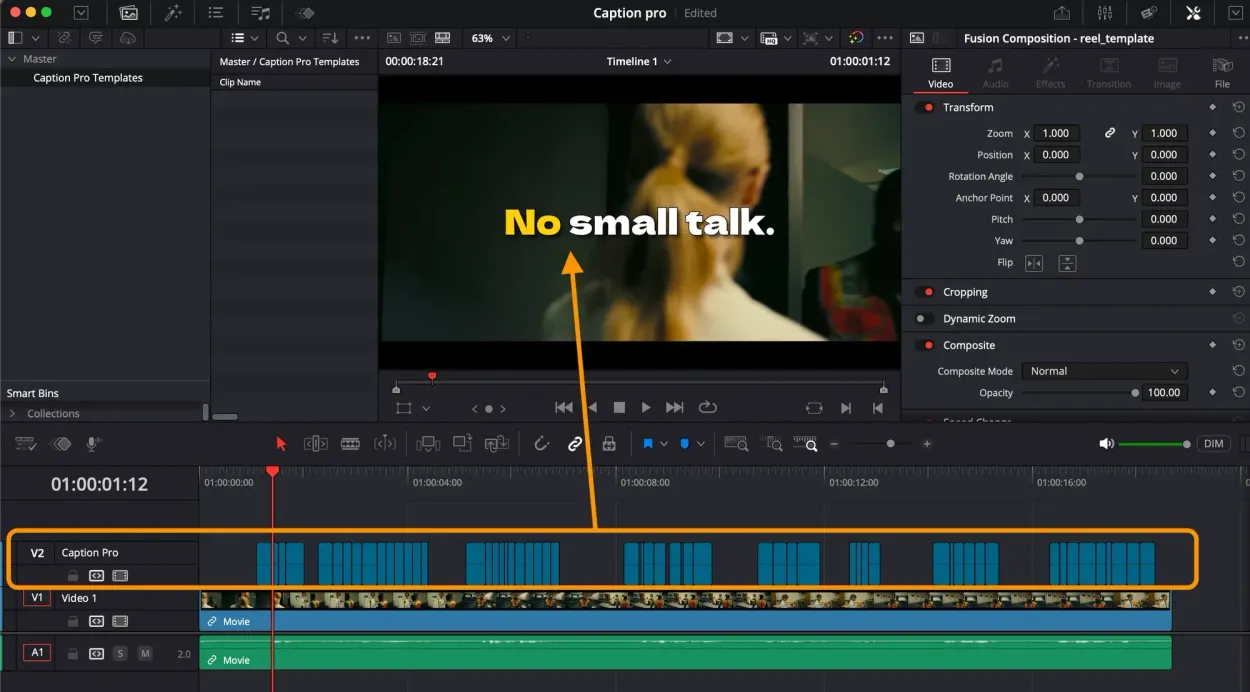
Caption Pro
Automatic word-by-word captions and translation for DaVinci Resolve
View plugin — €49.00
Get the zine
"Absorbed by the algorithm Vol. 1": 33 images shot in Paris, 28 pages, shipped worldwide.