Whiteborder Lab update
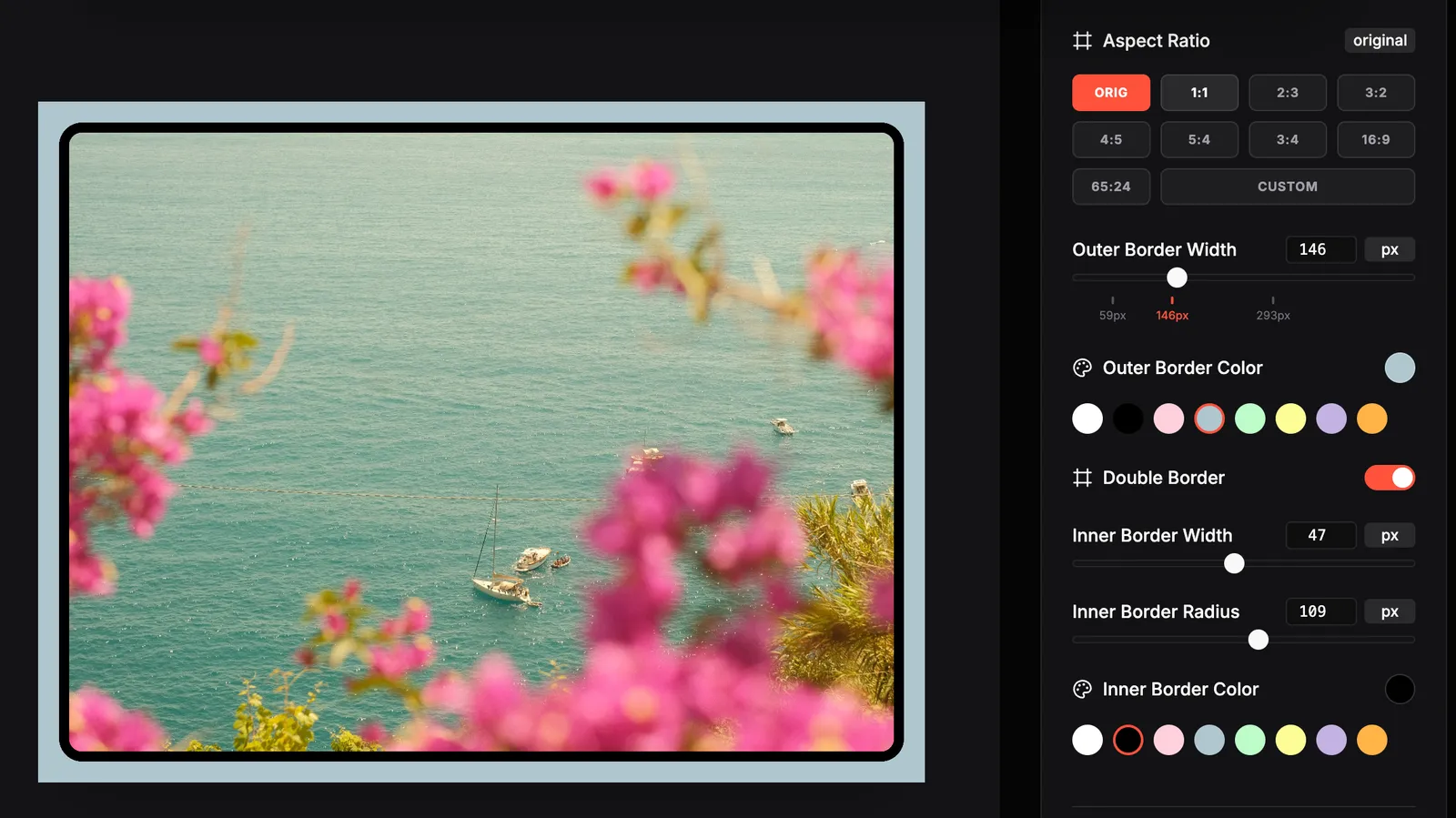
I added three features to Whiteborder Lab this week for people who want to add a white border to photos quickly.
You can now enter the outer border width with your keyboard. Type the value into the input box, or use the slider as before. I added sticky points to that slider at 3%, 5%, and 10% of the image size. These are widths I use often when I prepare an Instagram carousel or a single post.
The tool now has a second border line option. This draws an inner line between your photo and the main border. It gives a more defined frame when you want to add a border that separates clearly from the background of an app.
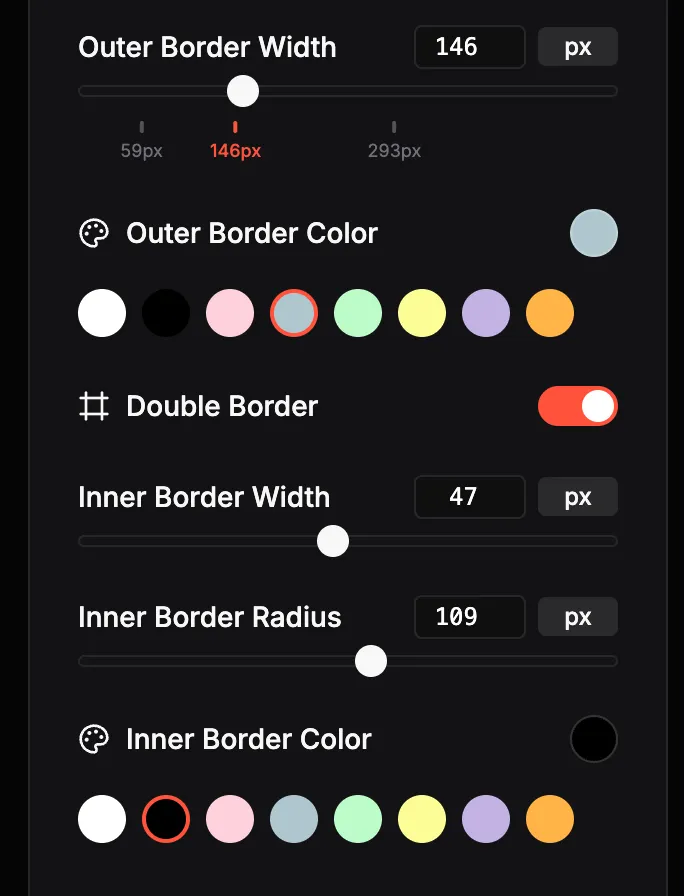
You can also round the corners. The Inner Border Radius setting controls the curve. This is useful if you want a softer look on your Instagram feed or when you add a border to a picture for a profile grid.
All of these work with the existing batch upload and formatting options. You still get ZIP output for multiple files. The tool (HERE) is still free. Your photos still never leave your device.
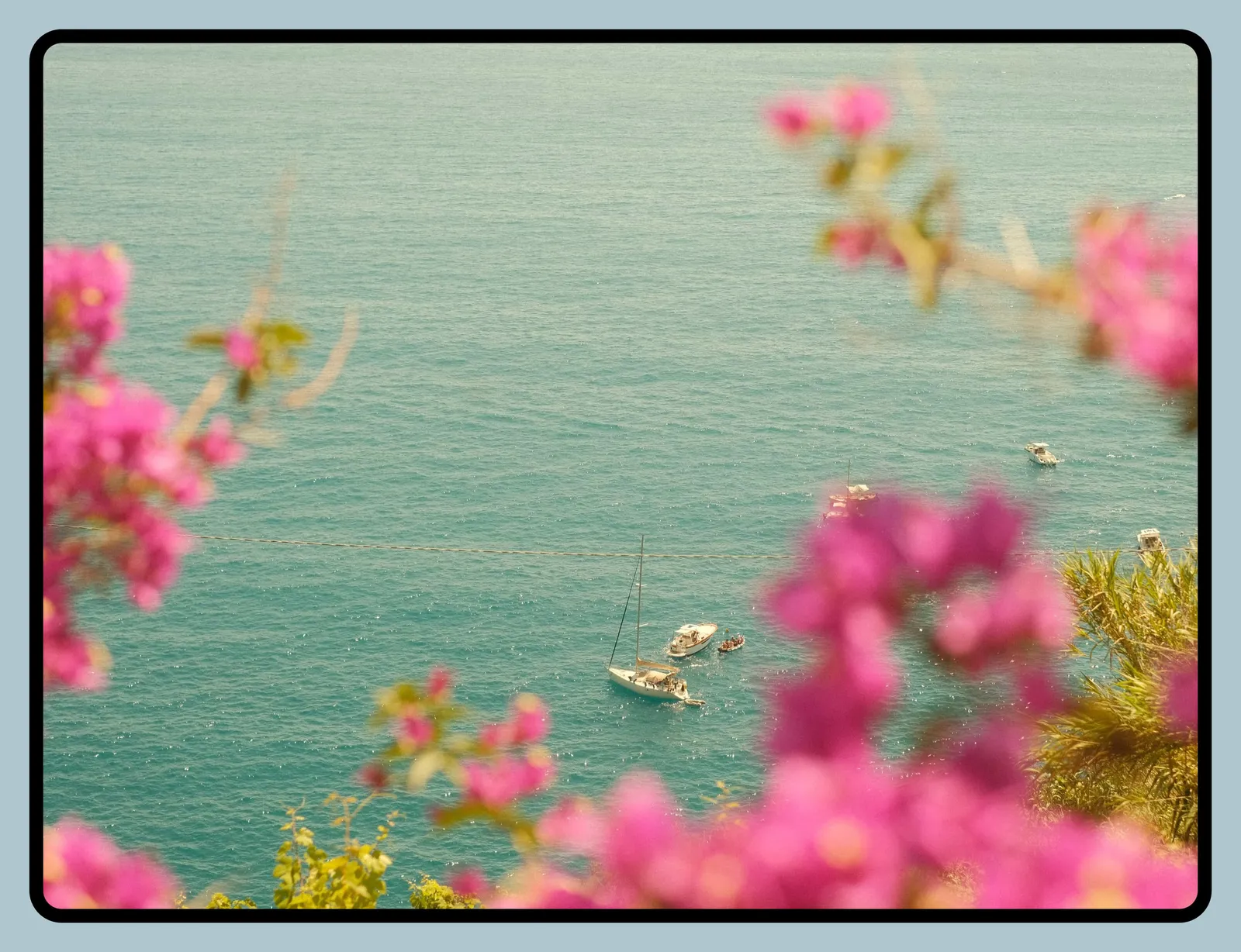
If you try the new settings, tag me @xere.my.
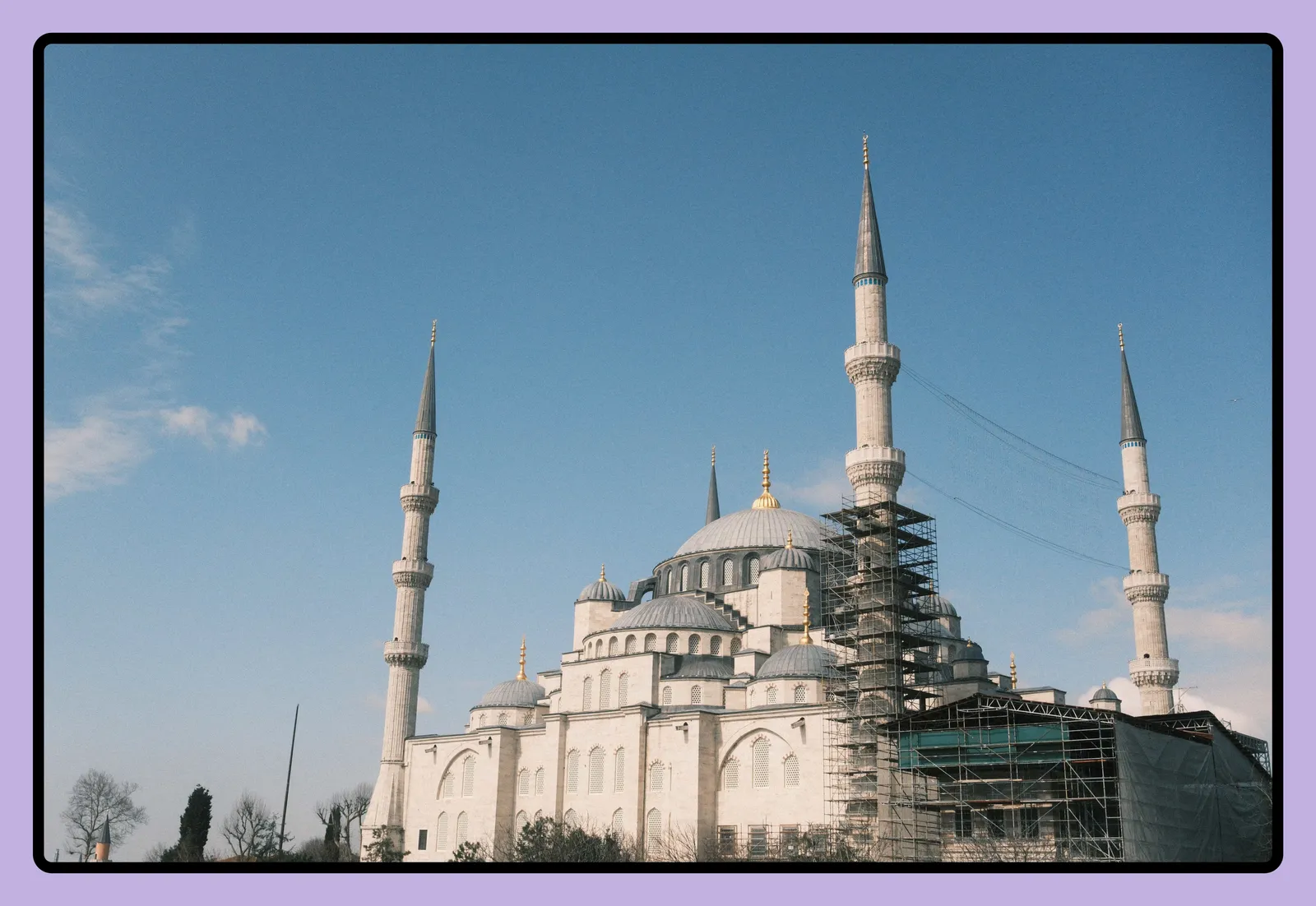
Update, July 21, 2026
I rebuilt most of the interface and added several features that users have been asking for.
Tabbed sidebar. The controls are now split into five tabs: Borders, Crop, Presets, EXIF, and Export. Everything is easier to find and the panel no longer feels cluttered.
Presets. Six ready-to-use looks are available in one click: Clean White, Dark Film, Polaroid Retro (with the wider bottom margin a real polaroid has), Gallery Mat, Fuji Slide, and Natural Linen. Each preset sets the border color, width, and inner frame at once. You can still adjust everything after applying one.
Output format and photo fit mode. You choose the aspect ratio of the final image (1:1 for Instagram, 4:5 for portrait, 3:2 for print, and so on) independently from whether the photo is cropped or left intact inside that frame. By default the full photo sits inside the chosen format with borders around it. Switch to Cover mode if you want the photo to fill the frame instead.
Crop, rotate, and flip. The Crop tab gives you zoom, horizontal pan, vertical pan, rotation, fine rotation, flip horizontal, and flip vertical. Nothing is destructive. All adjustments update the preview live and you can reset at any time.
EXIF metadata stamp. Enable this in the EXIF tab to print shooting data at the bottom of your border. When you import a photo that contains EXIF data, the stamp text is filled in automatically with the camera, lens, and exposure settings. You can edit that text freely or clear it and type anything you want. It works even if the file has no EXIF at all. You can restore the auto-detected text at any time with the Restore button. Three font styles are available: Minimal Sans, Editorial Serif, and Vintage Mono.
Color tools. The border color picker now comes with an EyeDropper to sample any color directly from the photo, plus a palette of five dominant colors extracted from the image automatically. Quick-access swatches for the most common border colors are still there below.
All changes are still processed entirely in your browser. Nothing is uploaded anywhere.
Help me keep writing
If these articles are useful to you, have a look at what I make.
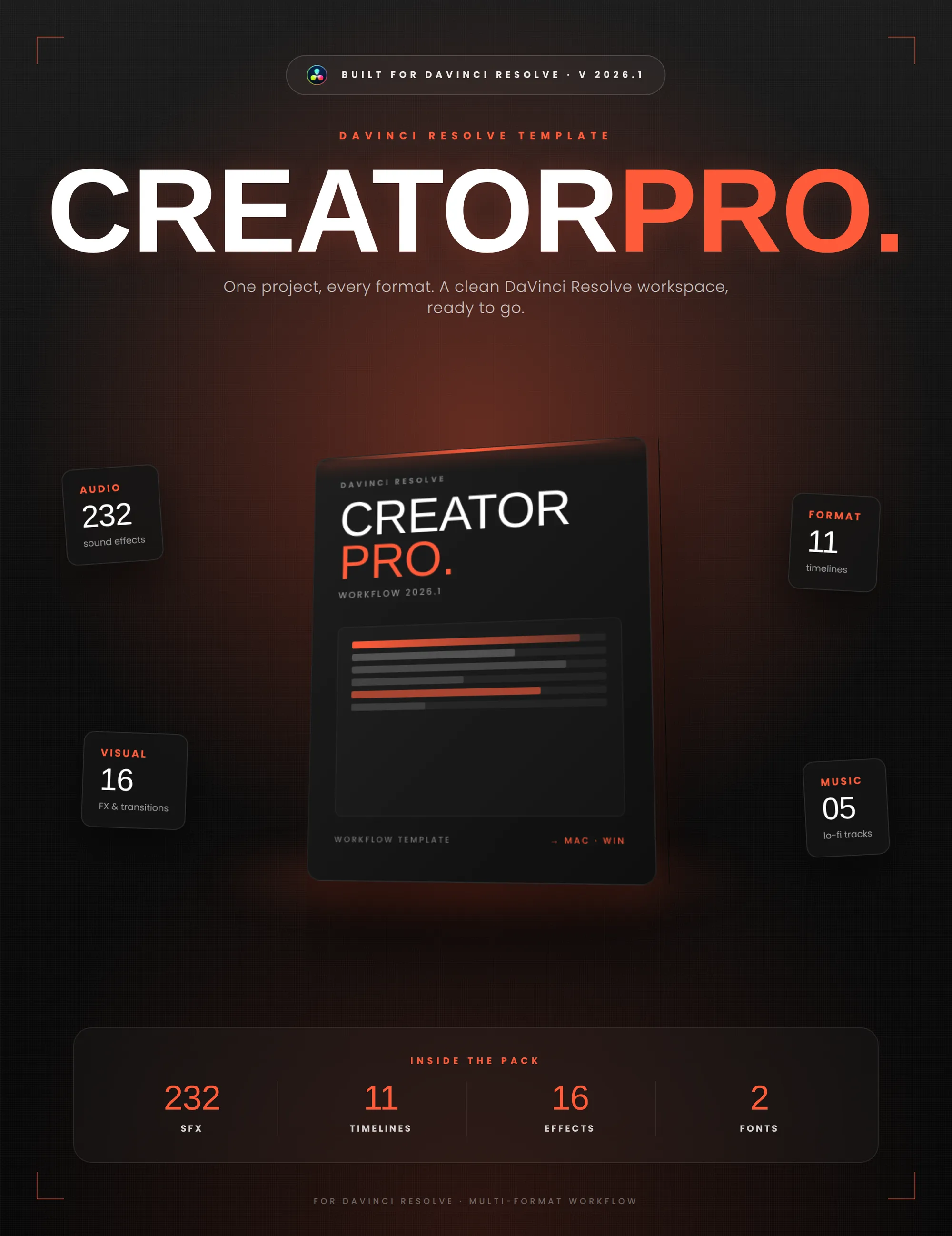
Creator Pro
The ultimate DaVinci Resolve workspace for creators
View plugin — €29.00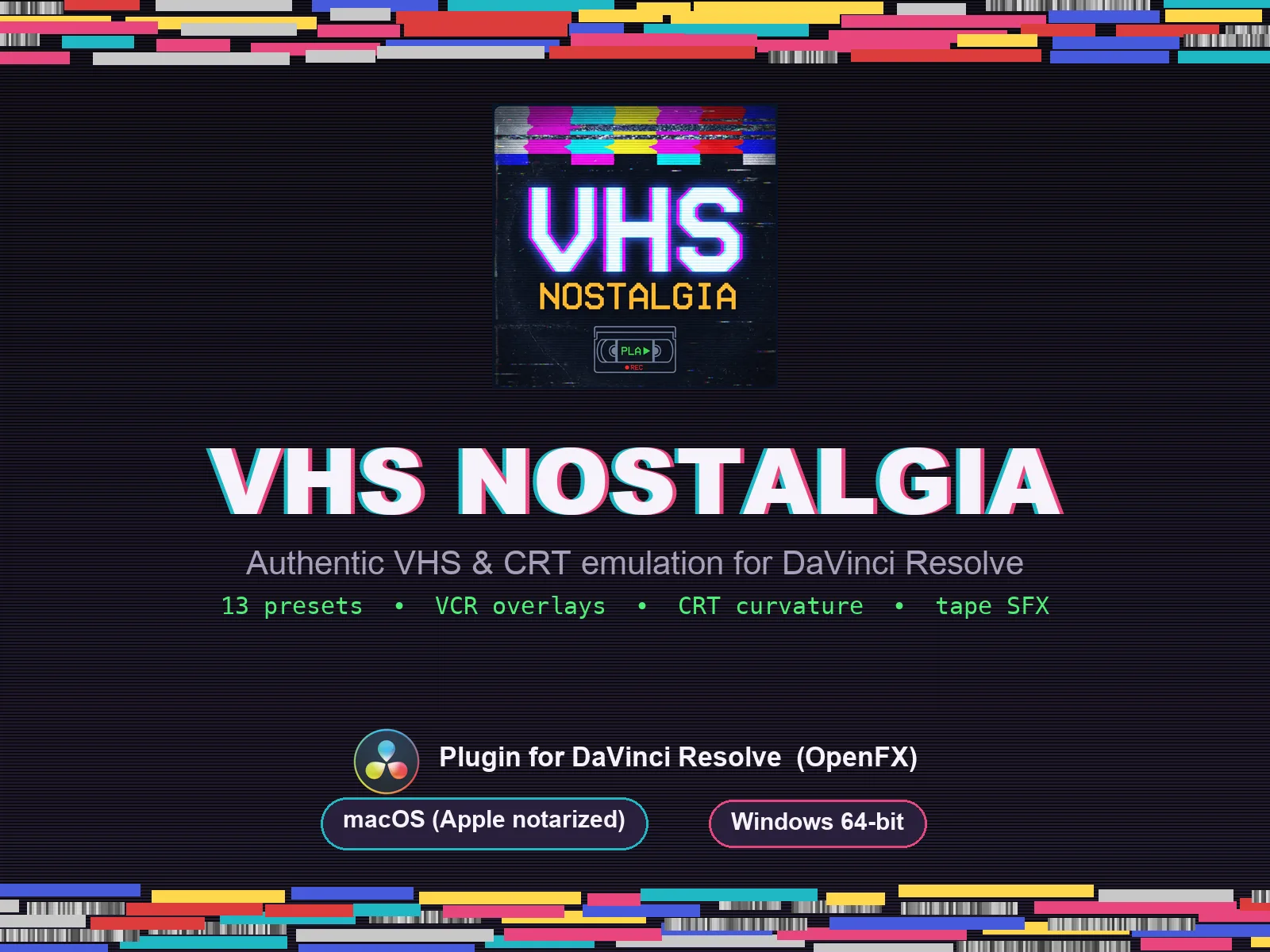
VHS Nostalgia
Real VHS & CRT emulation for DaVinci Resolve
View plugin — €49.00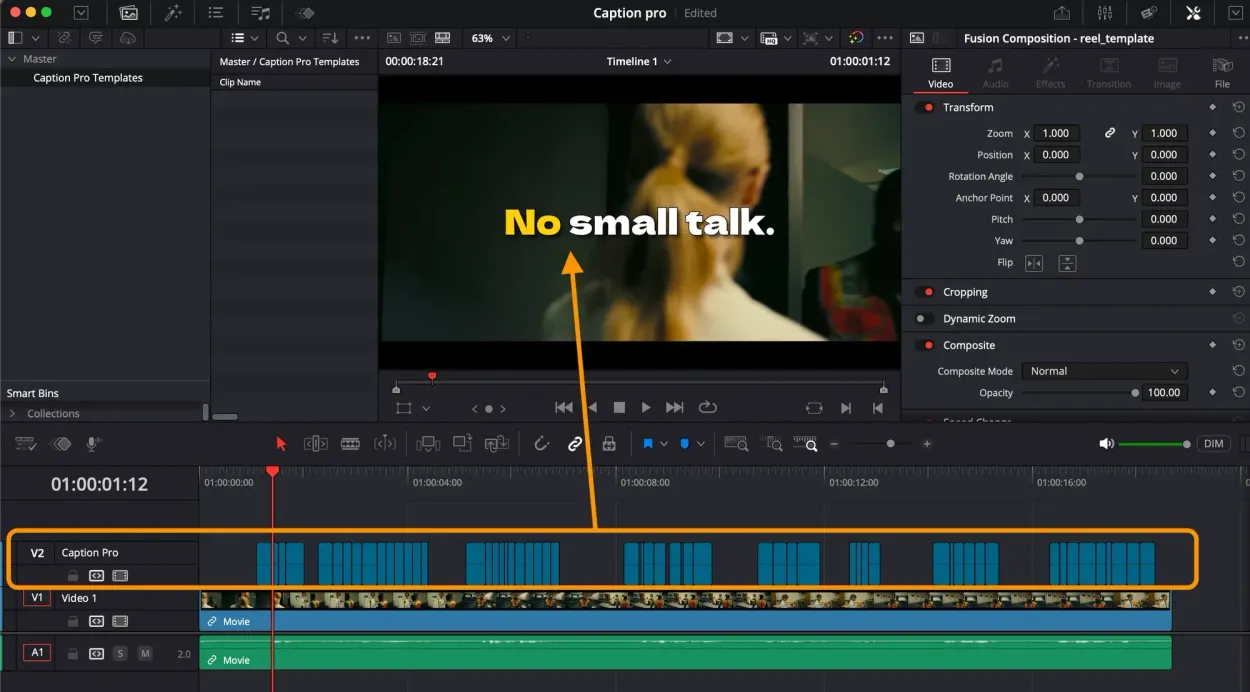
Caption Pro
Automatic word-by-word captions and translation for DaVinci Resolve
View plugin — €49.00
Get the zine
"Absorbed by the algorithm Vol. 1": 33 images shot in Paris, 28 pages, shipped worldwide.