How to Add Border to Photo Online
Add a clean, professional border to any photo in seconds. Choose width, color, and aspect ratio. Free browser tool, no upload required.
Watch Whiteborder Lab in action: upload, customize, and download.
Why Add a Border to Your Photos?
Adding a white border or custom frame to your images is one of the easiest ways to give your photography a polished, gallery-ready look. A border acts like a physical mat board, isolating the photo from distractions and drawing the viewer's eye directly into the frame.
For social media like Instagram and Threads, adding borders helps you maintain a consistent feed layout, prevents the app from awkwardly cropping your non-square images, and adds a premium aesthetic that stands out in a crowded scroll. Our browser-based Whiteborder Lab provides all these framing tools for free, running offline in your browser so your images stay 100% private.
Open Whiteborder Lab
Start from defaults and build your own look.
Try the Film Preset
Pre-loaded with white outer + black inner line.
Upload Your Photo
Open Whiteborder Lab and drag your photo onto the canvas, or click "Browse Files" to pick one from your computer. JPEG, PNG, and WebP are all supported. You can also upload multiple photos at once to add borders to a whole series in one go. All processing happens locally in your browser. Your photos never leave your device.
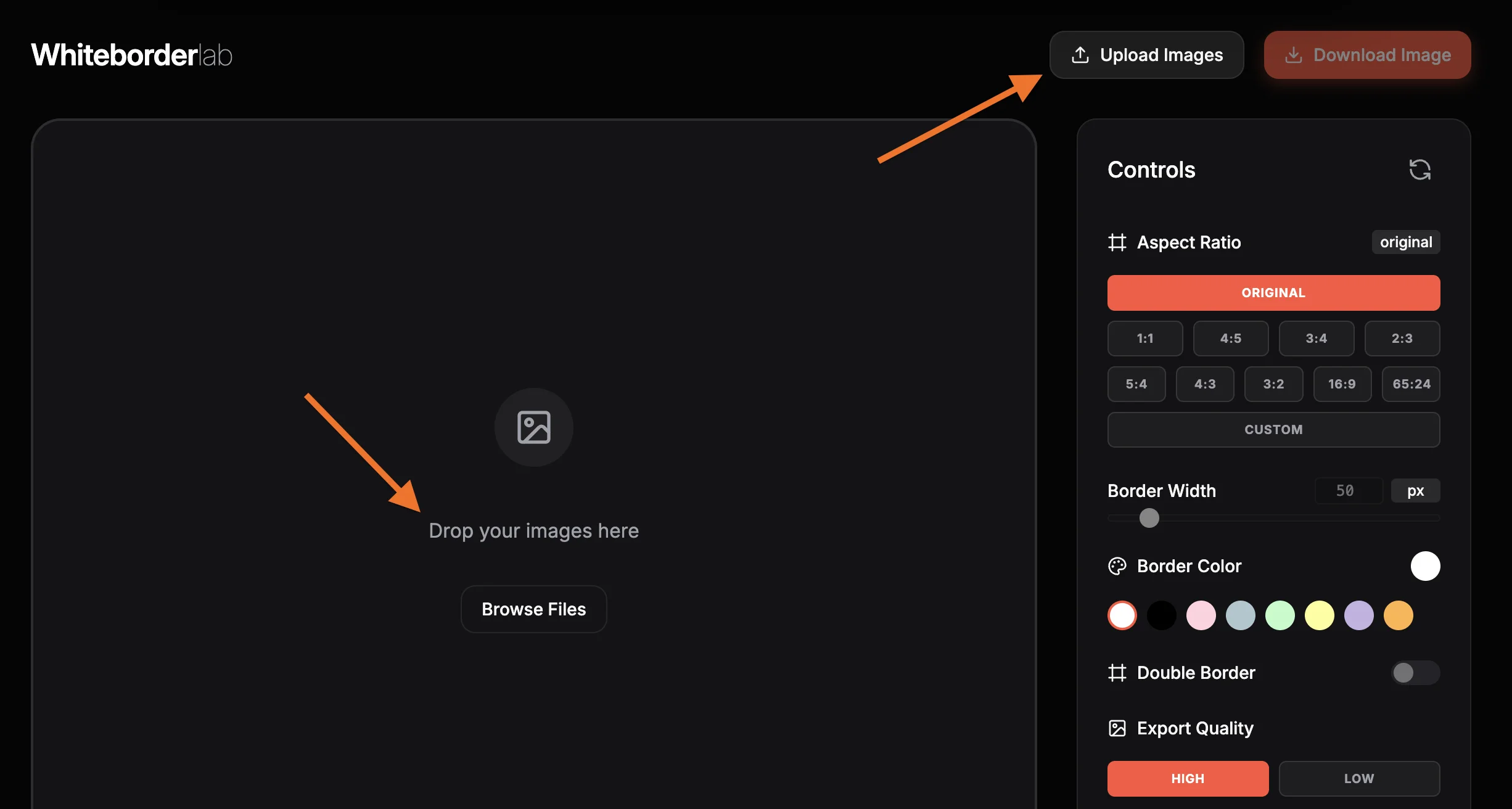
Choose an Aspect Ratio
Pick the canvas shape that fits where you plan to share the photo. Use "Original" to keep your photo's native ratio, or select a preset like 1:1 for Instagram, 4:5 for portrait posts, 16:9 for stories, or 65:24 for an XPan-style panoramic look. You can also enter any custom ratio you want. The canvas will expand automatically to match your chosen shape while keeping the image centered.
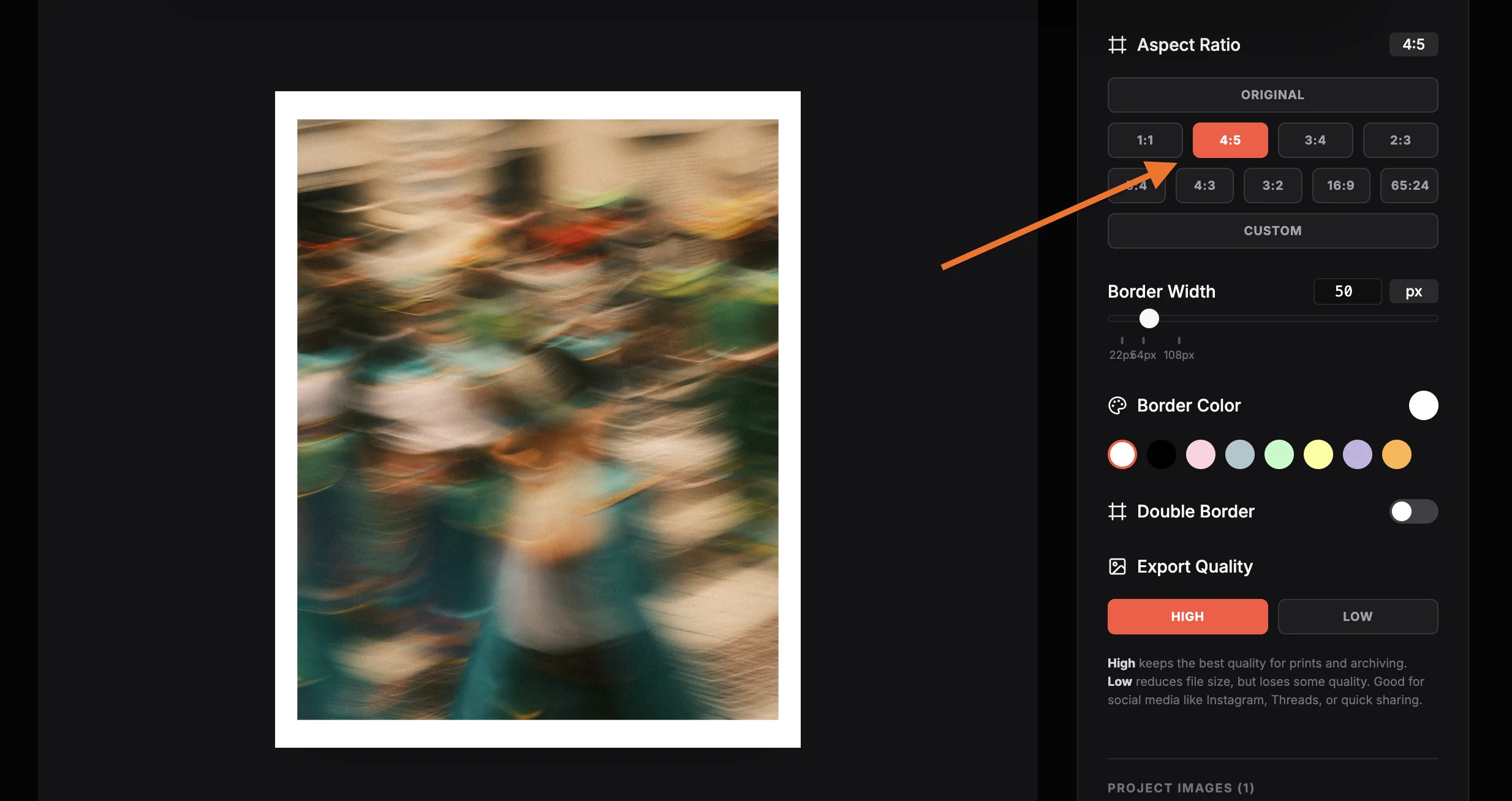
Set the Border Width
Use the Border Width slider to control how thick the border will be. The slider has smart sticky points that snap to 2%, 5%, and 10% of your image's smallest dimension. These are aesthetically pleasing proportions commonly used in gallery framing. For a subtle Instagram border, try 2%. For a bold gallery look, go with 10%. You can also type any exact pixel value you want.
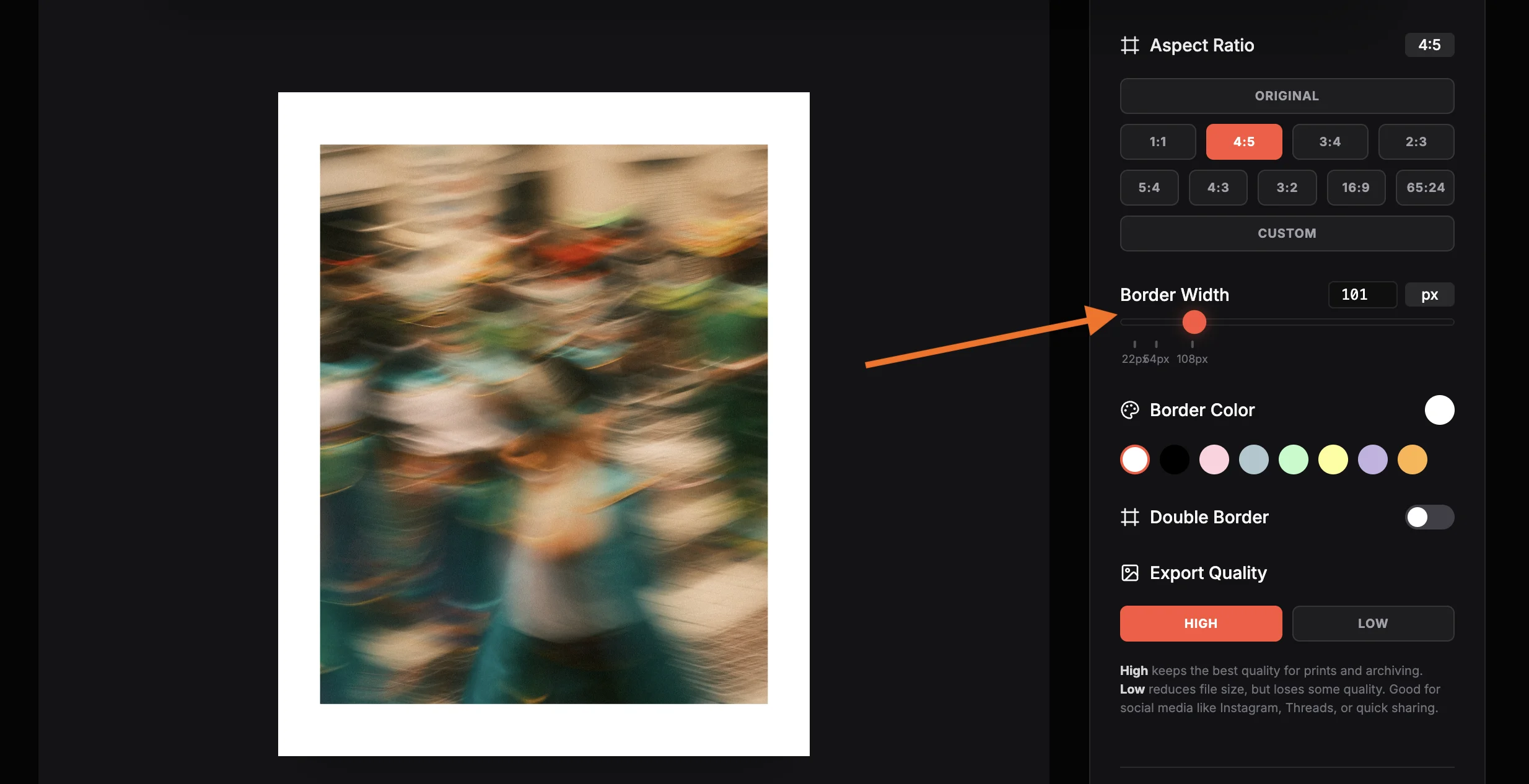
Pick a Border Color
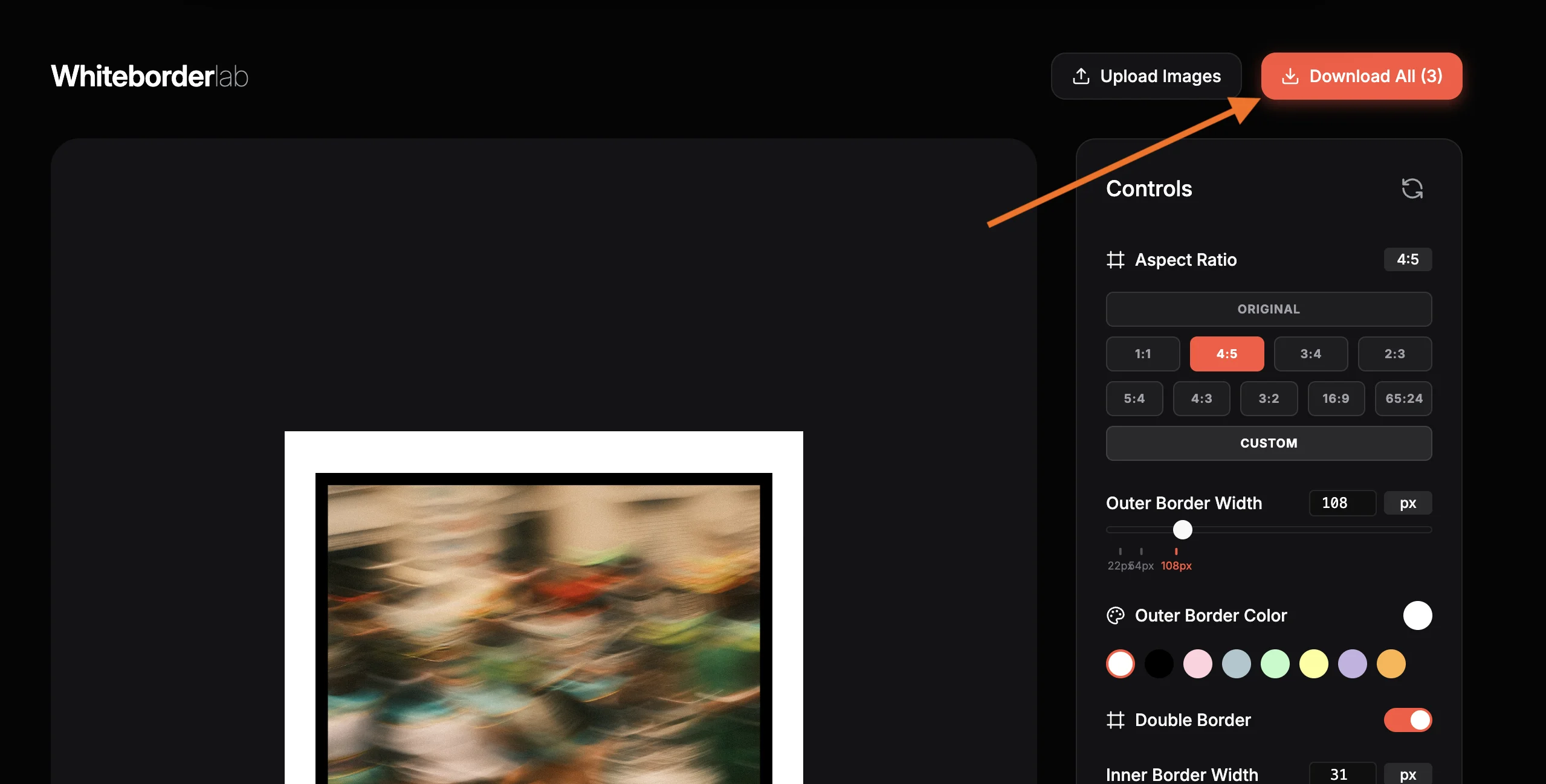
Click the color picker to choose any color for your border. Classic white (#ffffff) is the most popular choice for a clean gallery look. Black (#000000) creates dramatic contrast. You can also use the quick swatches for fast selection, or enter a specific hex code to match your brand or aesthetic. Try pastels for a soft look, or bold colors to make the border part of the design.
Export and Download
Click "Download Image" to save your bordered photo as a JPEG at full resolution. The file is named with a "-border" suffix so you can tell it apart from the original. Choose "High Quality" for print-ready output, or "Low" for a smaller file optimized for social media. If you uploaded multiple photos, use "Download All" to get a ZIP archive with every bordered image.
Quick Frame Proportions
| Setting | Value | Why this value |
|---|---|---|
| Subtle Frame | 2% Width | Thin border to separate your image from dark app backgrounds |
| Classic Border | 5% Width | Perfect balance of frame and image, standard for digital portfolios |
| Museum Matting | 10% Width | Generous mat board look, adds high value and artistic separation |
| Sticky Points | 2% / 5% / 10% | Slider snaps to these proportions for quick, balanced borders |
Frequently Asked Questions
Guides & Tutorials
Other Tools
Halation Lab
CineStill 800T film halation effect
CineStill 800T Preset
Preloaded iconic red glow settings
Whiteborder Lab
Custom borders & aspect ratios
Film Border Generator
Classic film look border
Double Border Generator
Sharp double frame border
InstantCard Lab
Photo cards with camera metadata
Carousel Lab
Seamless Instagram carousels
Grading Lab
Color palette extractor
FotoZine Lab
Create printable photo zines
Camera Finder
Find your perfect Fujifilm