How to Add a White Border to Your Photos Online for Free
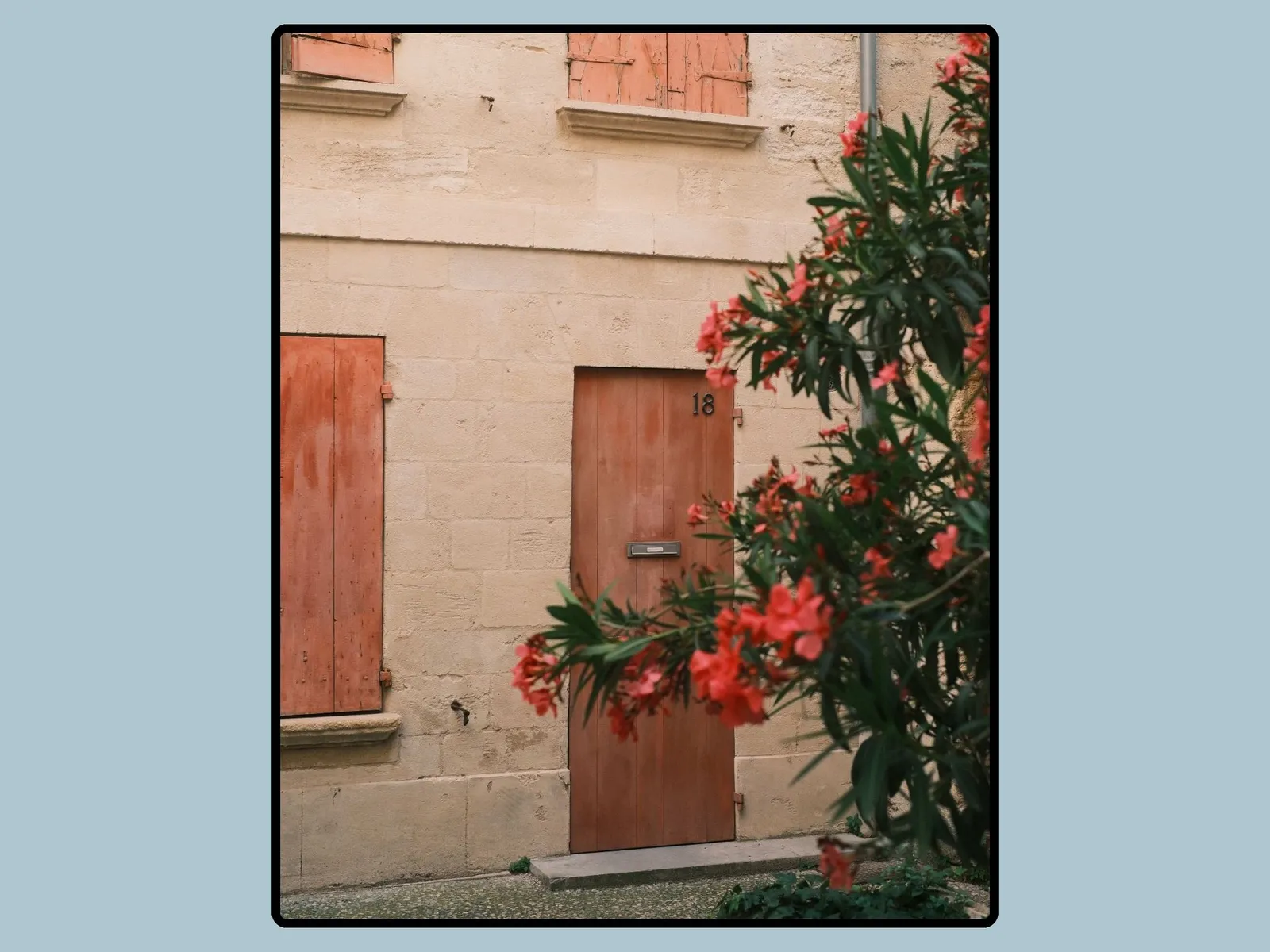
A white border does something simple and effective. It gives a photo room to breathe, separates it cleanly from the background of an app, and makes a feed look considered instead of cramped. Photographers have framed prints this way for as long as prints have existed. On Instagram, a consistent border is one of the easiest ways to make a grid look like a portfolio rather than a camera roll.
The problem is that adding one used to mean opening Photoshop, fighting with a mobile app full of ads, or paying a subscription for a single feature. It shouldn't be that complicated. Here are the tools I actually recommend, starting with the one I built myself because I was tired of the alternatives.
White Border Lab: free, private, and built for batches
White Border Lab is my own tool. I made it because I wanted to frame my photos without uploading them to a server, without installing anything, and without paying for it. It runs entirely in your browser. Your images never leave your device, which matters to me both for privacy and because I don't love the idea of handing my full-resolution files to a company that might train a model on them.
A few things make it the one I use daily. You can process a whole batch at once, drop in a folder of images, apply the same border to all of them, and download the lot as a ZIP file. For anyone preparing a cohesive feed or a gallery submission, that alone saves a lot of time. You also get standard aspect ratios beyond square: 1:1 for grids, 4:5 for vertical feeds, 3:2 for classic frames, 16:9 for video thumbnails, and the 65:24 Hasselblad XPan ratio for a wide panoramic look. You can also set any background color you want, not just white. Black for dramatic contrast, or any shade that fits the series you're working on. A lot of simpler apps lock you into white only. It works the same way whether your files come from Fujifilm, Canon, Nikon, Sony, Leica, or a phone.
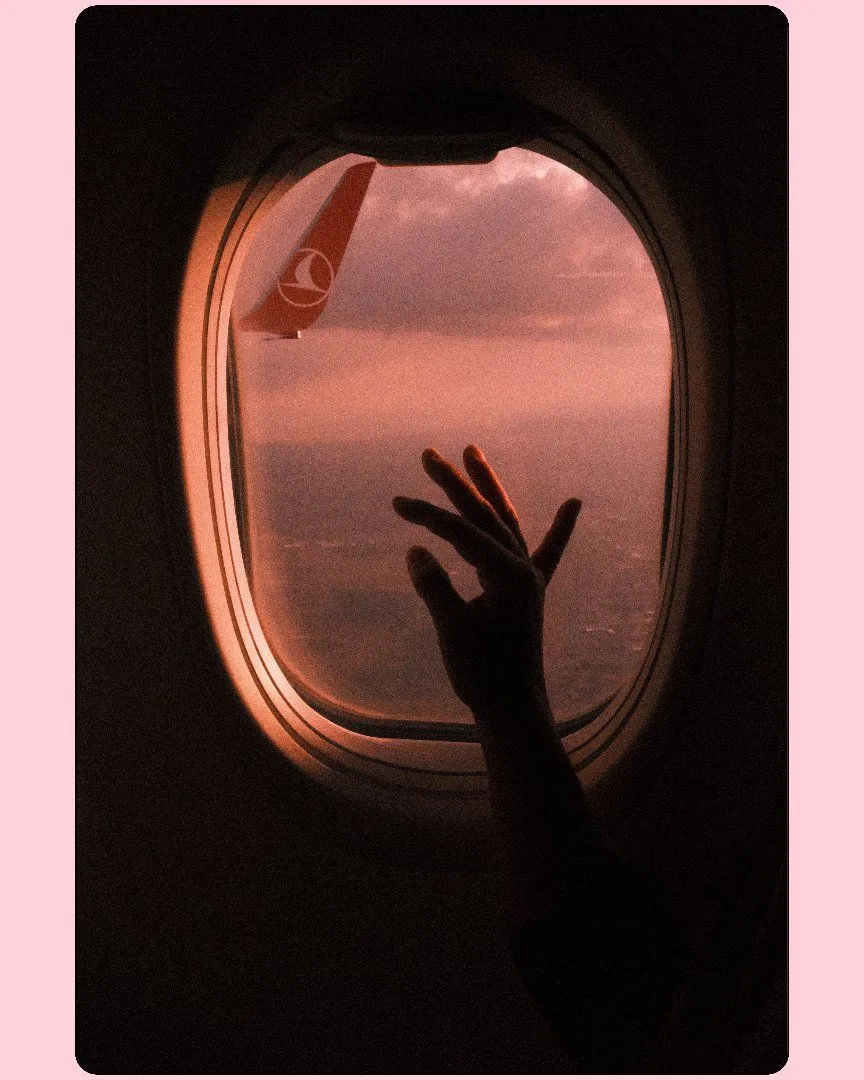
The feature I'm most attached to is the double border. It draws a second thin line between the photo and the outer border, which gives a framed, slightly analog look, closer to a darkroom print than a flat digital margin. You can also round the corners if you want something softer for a profile grid.
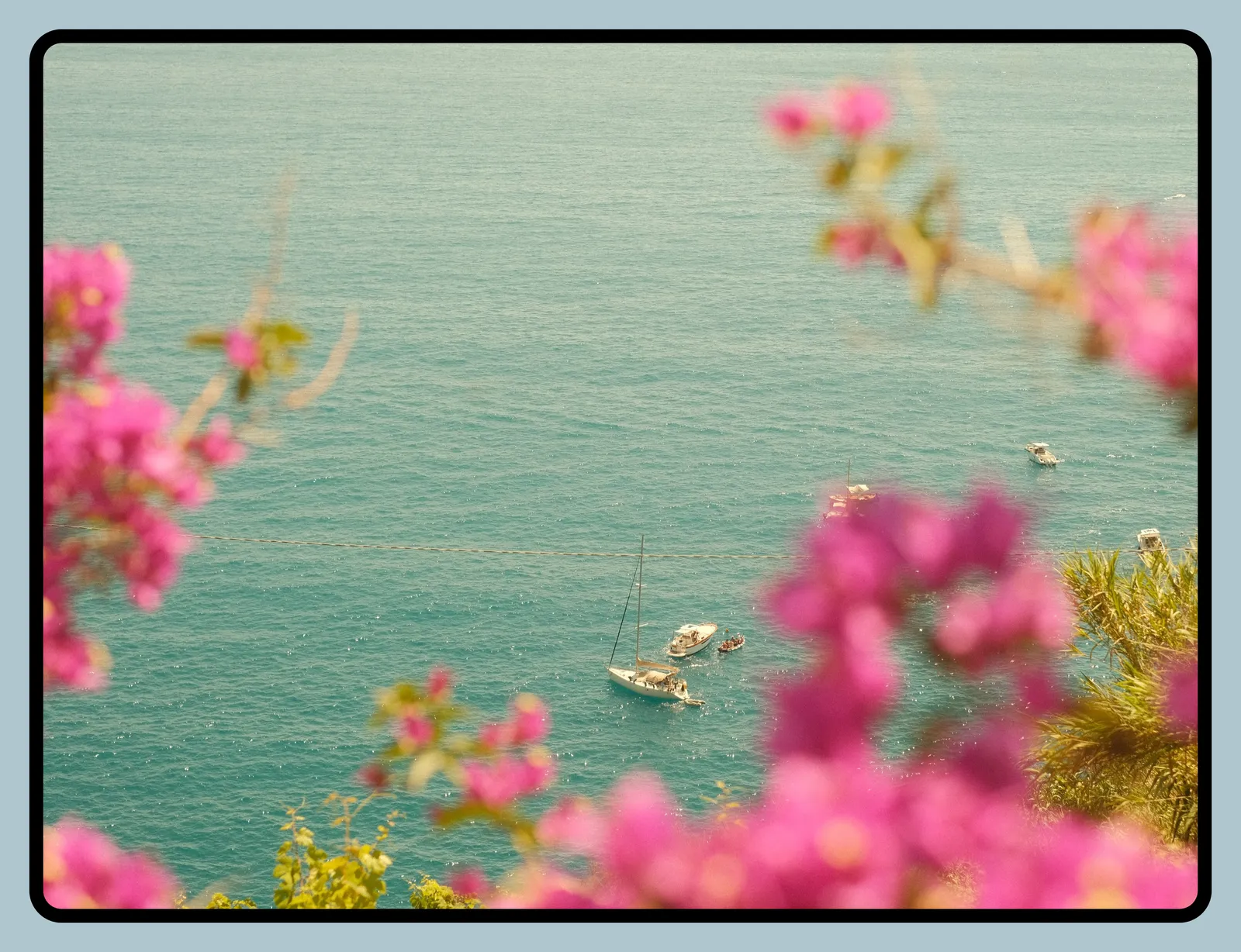
No account, no watermark, and nothing gets uploaded. It works on mobile and desktop. That's the whole tool.
Visit the complete whiteborder lab tutorial HERE.
addwhiteborder.com: a clean, single-purpose web tool
addwhiteborder.com, built by a photographer who goes by Chris, takes a similar approach. It's a browser-based tool that adds borders locally, keeps your photos on your device, and handles batch processing. It preserves EXIF data, which is useful if you care about keeping your shooting information attached to the file, and it lets you share processed images straight to other apps without downloading them first.
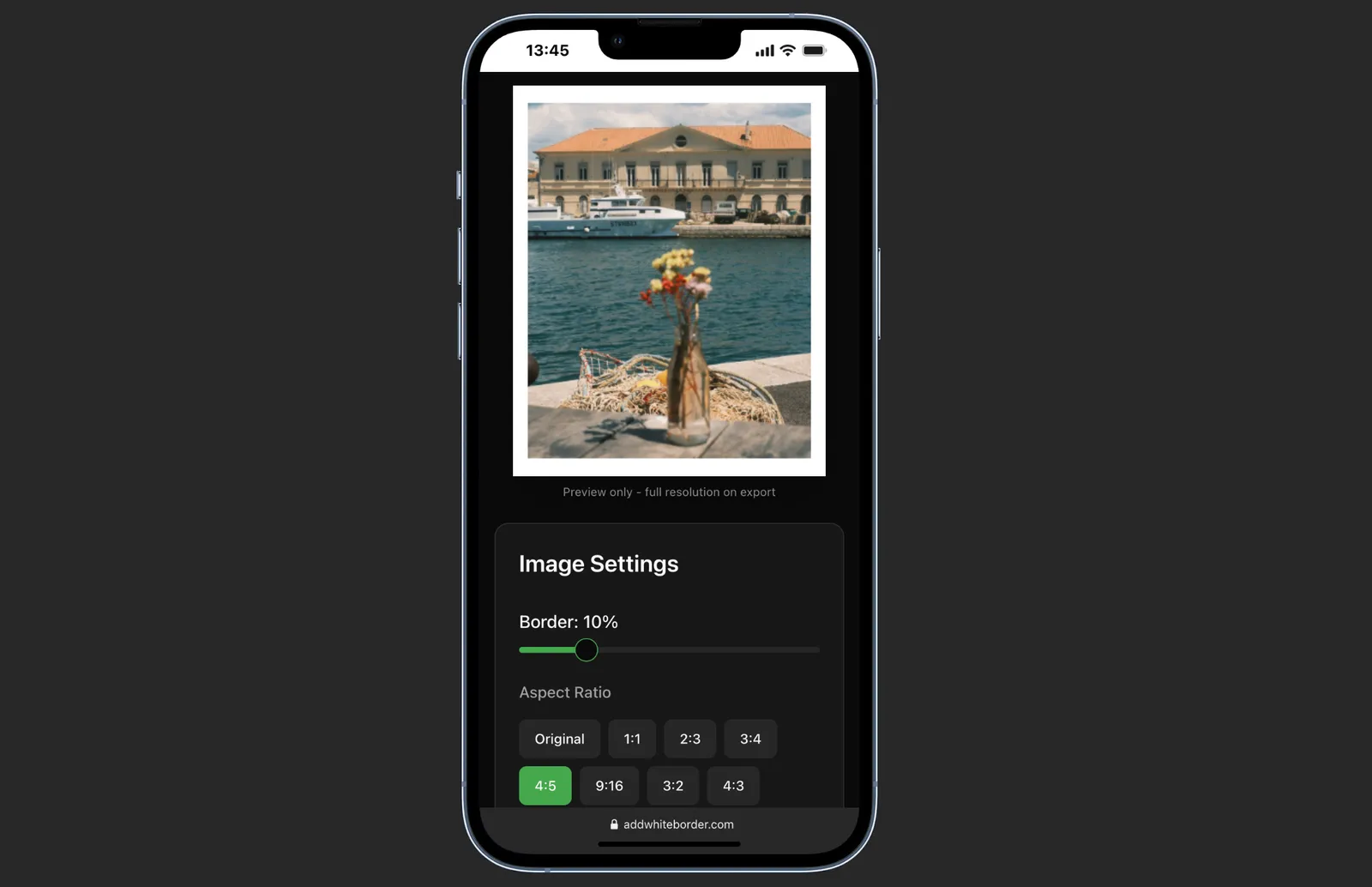
It does one job and does it cleanly. If you're on mobile and want something you can save to your home screen like an app, it's a solid choice. The main practical difference from White Border Lab comes down to the specific options each one gives you, so it's worth trying both and seeing which fits your hand better.
Canva: more than borders, if you want it
Canva is the heavyweight option. Adding a border is a small part of what it does. You upload your photo, drop it onto a canvas, and you can add a solid outline in any color and width, build a polaroid effect, apply photo frames, add text, graphics, and a lot more on top.
The trade-off is what you'd expect. Canva is powerful but it's a full design platform, which means more steps for a simple border and an account to manage. If you're already in Canva for other work, or you want to combine a border with captions and graphics in one place, it makes sense. If all you want is a clean frame on a batch of photos, it's more tool than the task needs.
Mobile apps: Snapseed, SCRL, and the App Store options
If you'd rather stay on your phone, there are a few routes.
Snapseed, Google's free editor, can add a frame among its many editing tools. It's genuinely free with no ads, and if you already use it for adjustments it's convenient to add a border in the same place. The border options are basic, though, and it's built for editing single images rather than framing a batch. I used Snapseed for many years but had to build my own solution to go beyond its limitations.
SCRL is a different kind of tool. It's really a carousel and collage maker, designed for building seamless swipe-through Instagram posts where an image spans several slides. Photographers like it for sharing session photos without landscape shots getting cut off, and you can create borders of any size within it. It's powerful for storytelling across multiple slides, but it runs on a subscription for the full feature set, and framing single photos isn't really its main purpose. I also used SCRL many times, but found that there were to many limitations for what I wanted to do.
There are also dedicated App Store apps like White Border by Tao Zhang, which does one-tap framing, batch editing, and a one-time purchase to remove ads. Reviewers describe it as fast and uncluttered, good for a heavy posting workflow where you batch-select photos and add borders in one click. If you live inside your phone and want a native app, it's worth a look.
Which one should you use
| Tool | Pick it when |
|---|---|
| White Border Lab | You want free, private, in-browser batches with colored backgrounds and double borders |
| addwhiteborder.com | You want the same browser-based approach with a different interface |
| Canva | You want an all-in-one design platform and accept the extra steps |
| Snapseed or the White Border app | You edit and post entirely on your phone |
| SCRL | Carousels are what you are after |
Here's the honest answer: they all work. The right one depends on your workflow. If you want a free, private, browser-based tool that handles batches and gives you colored backgrounds and double borders, White Border Lab is what I reach for, and addwhiteborder.com is a close cousin worth trying. If you want an all-in-one design platform and don't mind the extra steps, Canva covers it. If you edit and post entirely on your phone, Snapseed or a dedicated app like White Border will serve you well, and SCRL is the one to pick if carousels are your thing.
The goal is the same in every case: spend less time framing and more time shooting. Find the tool that fits how you already work, set it up once, and get back to the photos.
Help me keep writing
If these articles are useful to you, have a look at what I make.
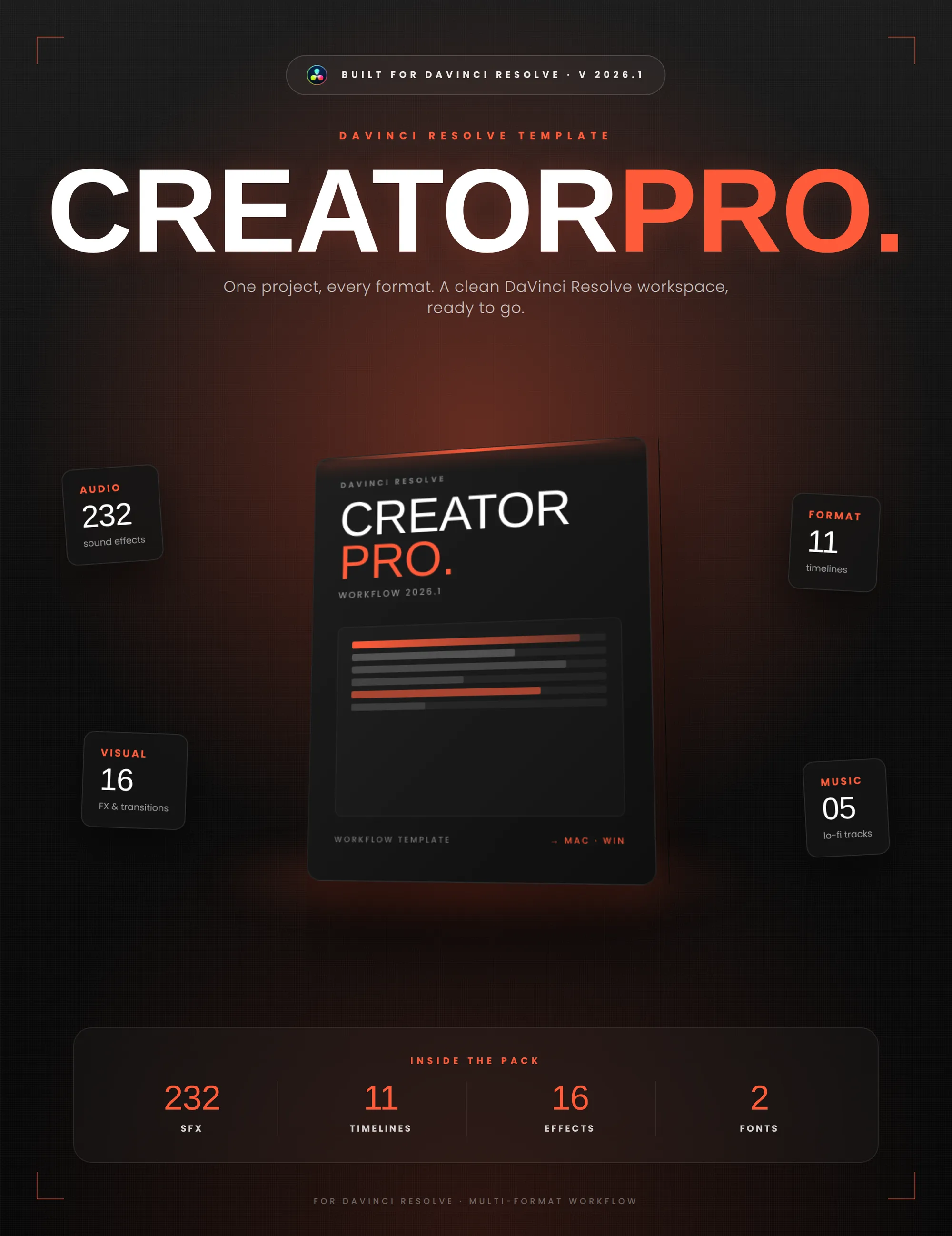
Creator Pro
The ultimate DaVinci Resolve workspace for creators
View plugin — €29.00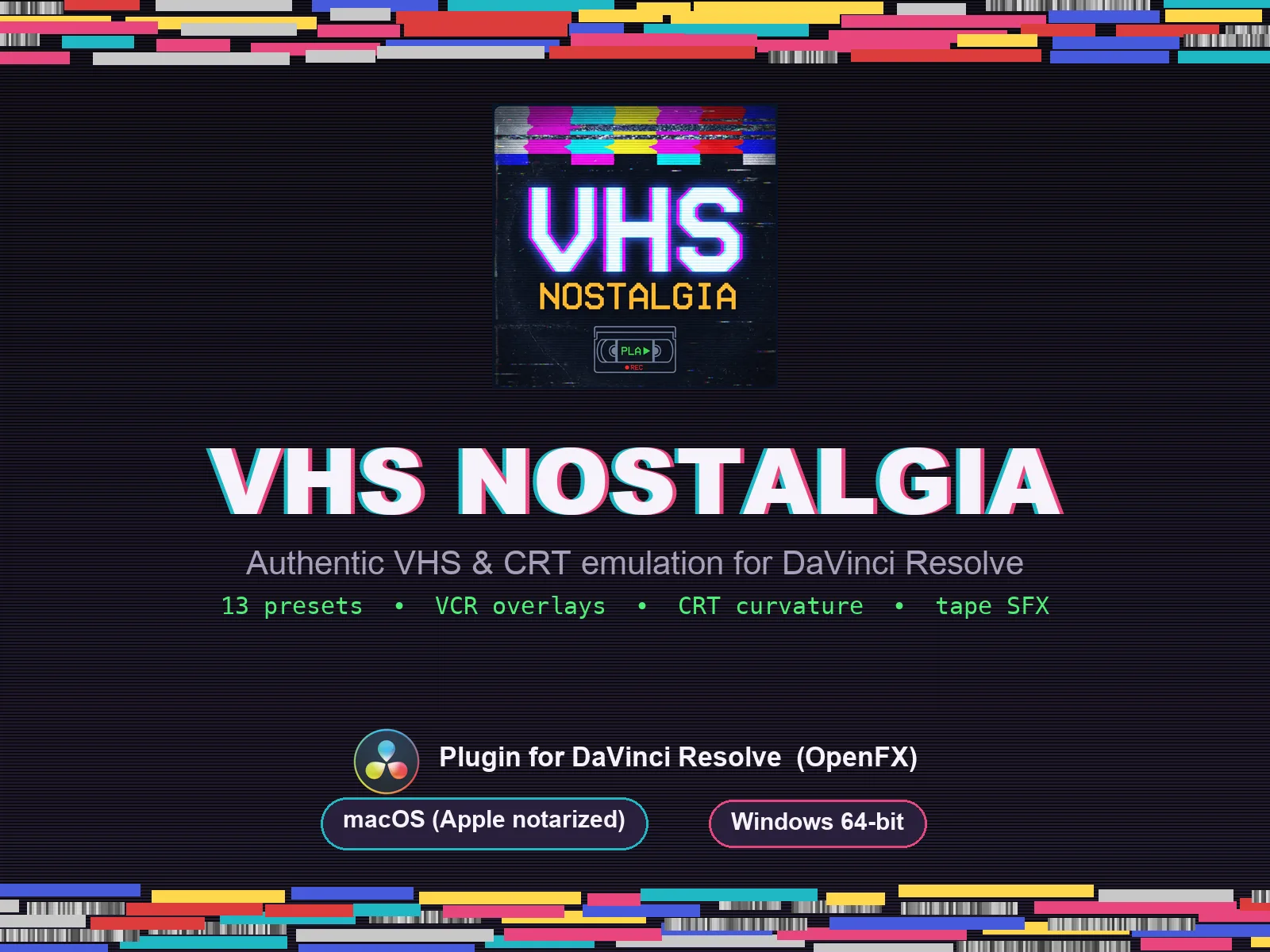
VHS Nostalgia
Real VHS & CRT emulation for DaVinci Resolve
View plugin — €49.00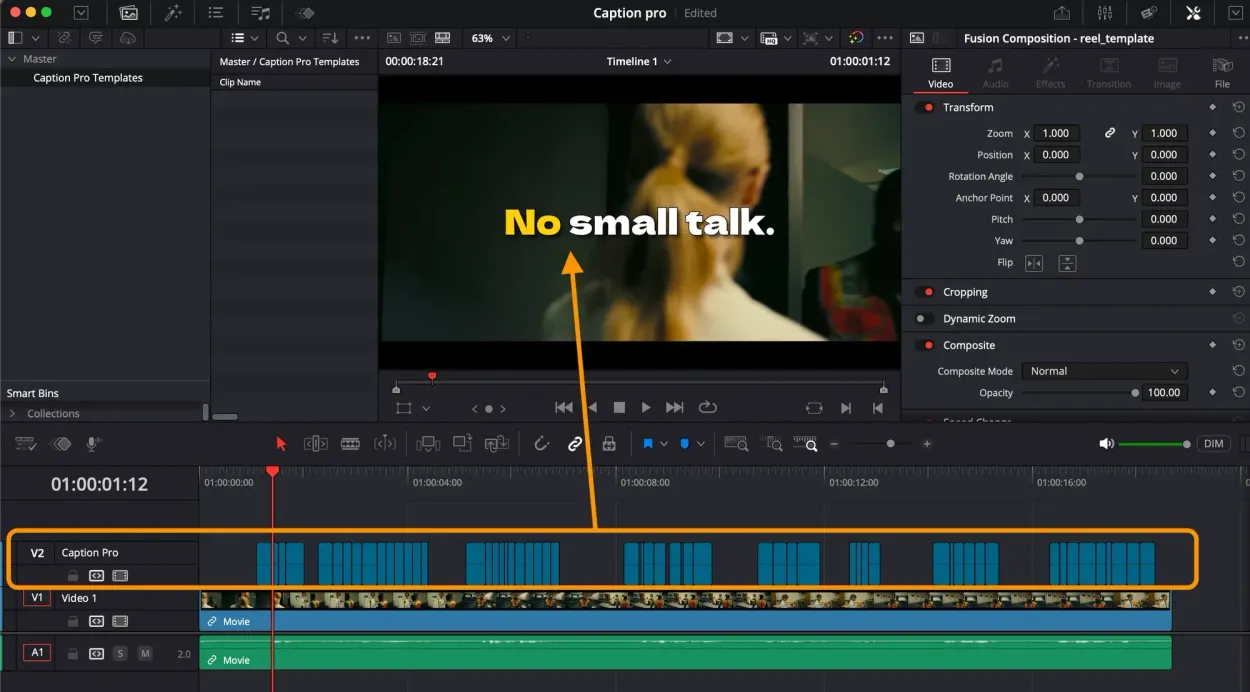
Caption Pro
Automatic word-by-word captions and translation for DaVinci Resolve
View plugin — €49.00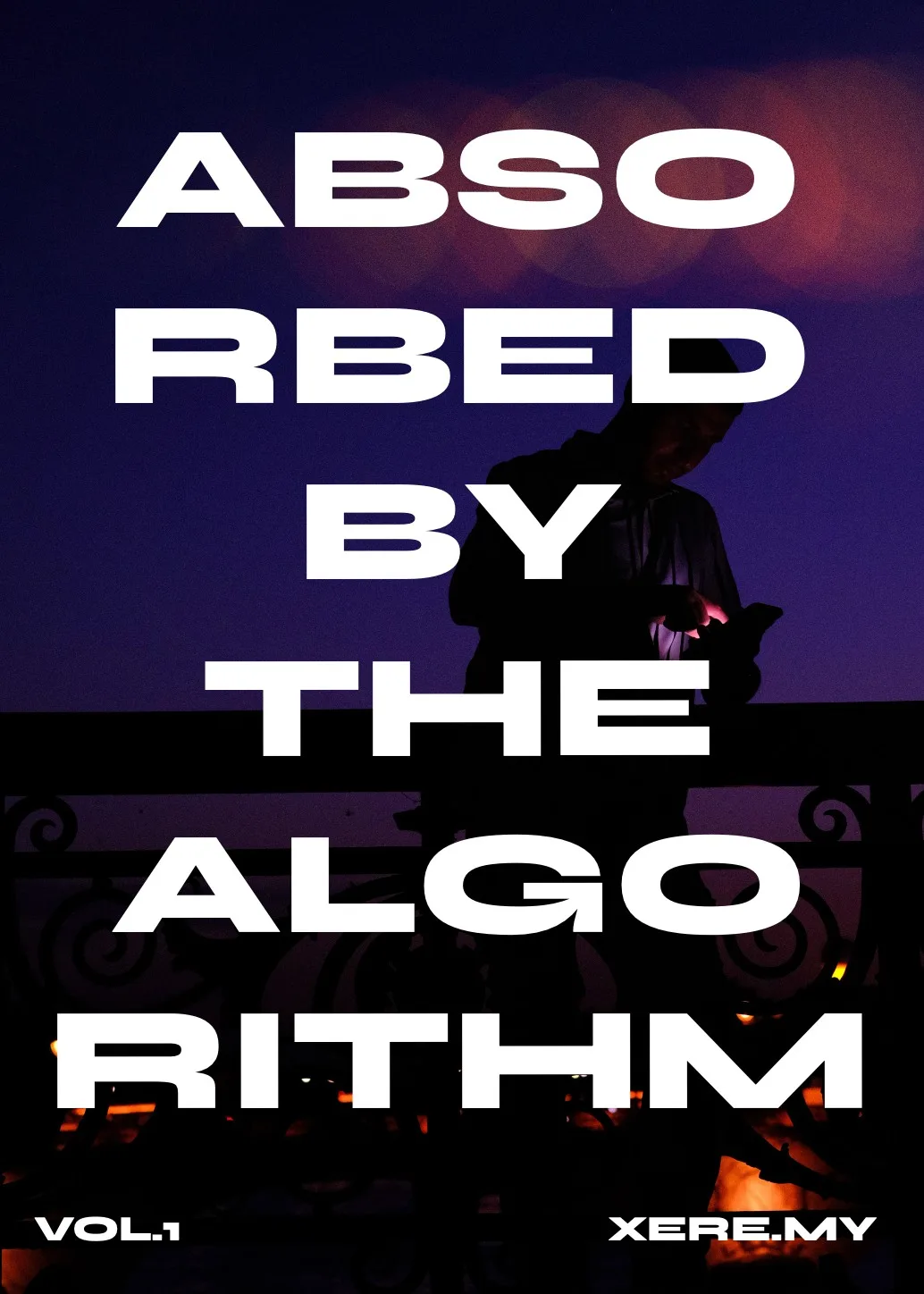
Get the zine
"Absorbed by the algorithm Vol. 1": 33 images shot in Paris, 28 pages, shipped worldwide.