How I Style Karaoke Captions for Reels and TikTok in DaVinci Resolve
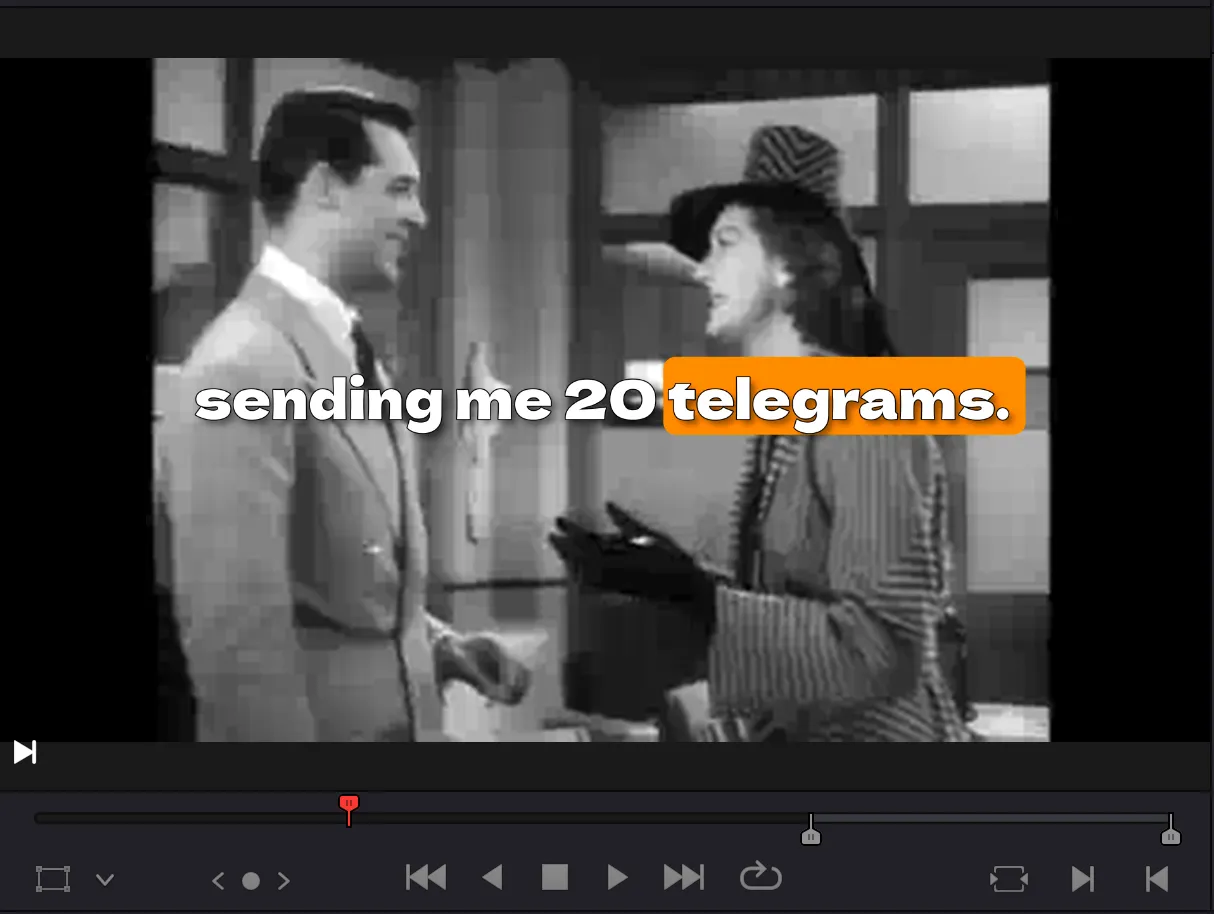
I watch most short-form video with the sound off. On the tram, in a queue, in bed next to someone asleep. The people who watch my Reels and TikToks do the same, so on a muted phone the captions end up carrying the whole video.
Full-line subtitles work for films. On vertical video they read too slowly, because the eye has to parse a whole sentence while the speaker is already two thoughts ahead. Word-by-word karaoke captions fix that: each word appears or lights up exactly when it is spoken, so reading takes no effort at all. The viewer follows the voice without hearing it.
I already wrote about how I generate these captions automatically with Whisper inside DaVinci Resolve. This article is the other half: how I style them so they survive a phone screen.
One to four words per screen
The single biggest styling mistake is density. A caption that holds a full sentence forces the viewer to choose between reading and watching. My rule is one to four words per screen, cut at natural pauses rather than mid-phrase. "I drove eight hours" then "for this thirty seconds of light" reads better than the full sentence in one block.
This is also why I let the tool do the timing and I only adjust the grouping. Word-level timing from the transcript is already frame-accurate; the creative decision is where the line breaks fall.
Placement: the middle band, always
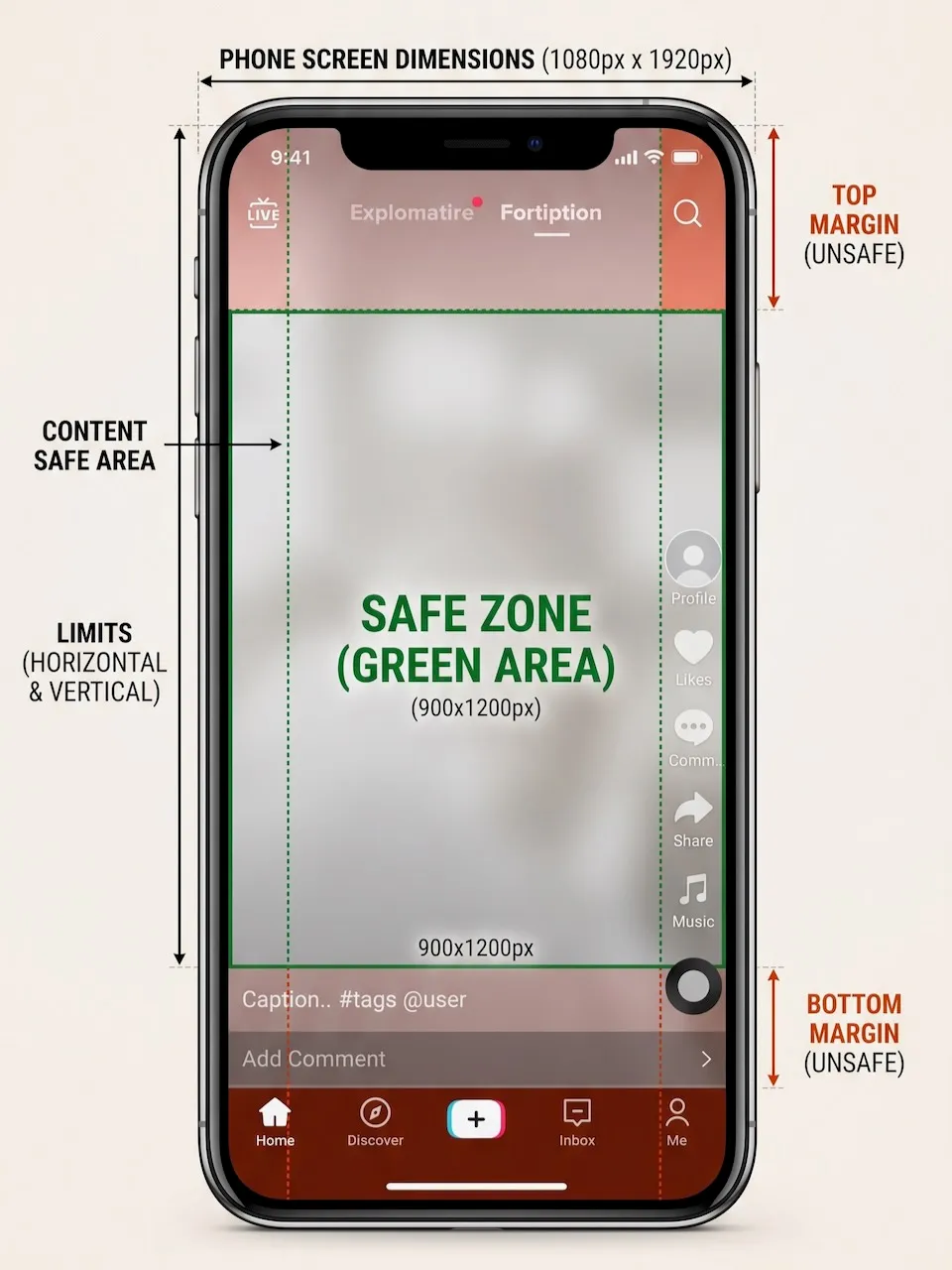
TikTok and Reels both draw their interface over your video. The right rail carries the like, comment, and share buttons. The bottom carries your username, the description, and the audio label. Anything you place in those zones gets covered.
So my captions live in the middle band of the frame, slightly above center when the speaker's face is in the lower half, slightly below center when the face is high. I never put text in the bottom quarter of a vertical video. The day TikTok moves its interface again, I will adjust, but the bottom quarter has been a dead zone for years.
Contrast, on a phone screen outdoors
A phone screen outdoors in August is a hostile place for white text. Two treatments survive it, and I ship both in Caption Pro because they cover different footage.
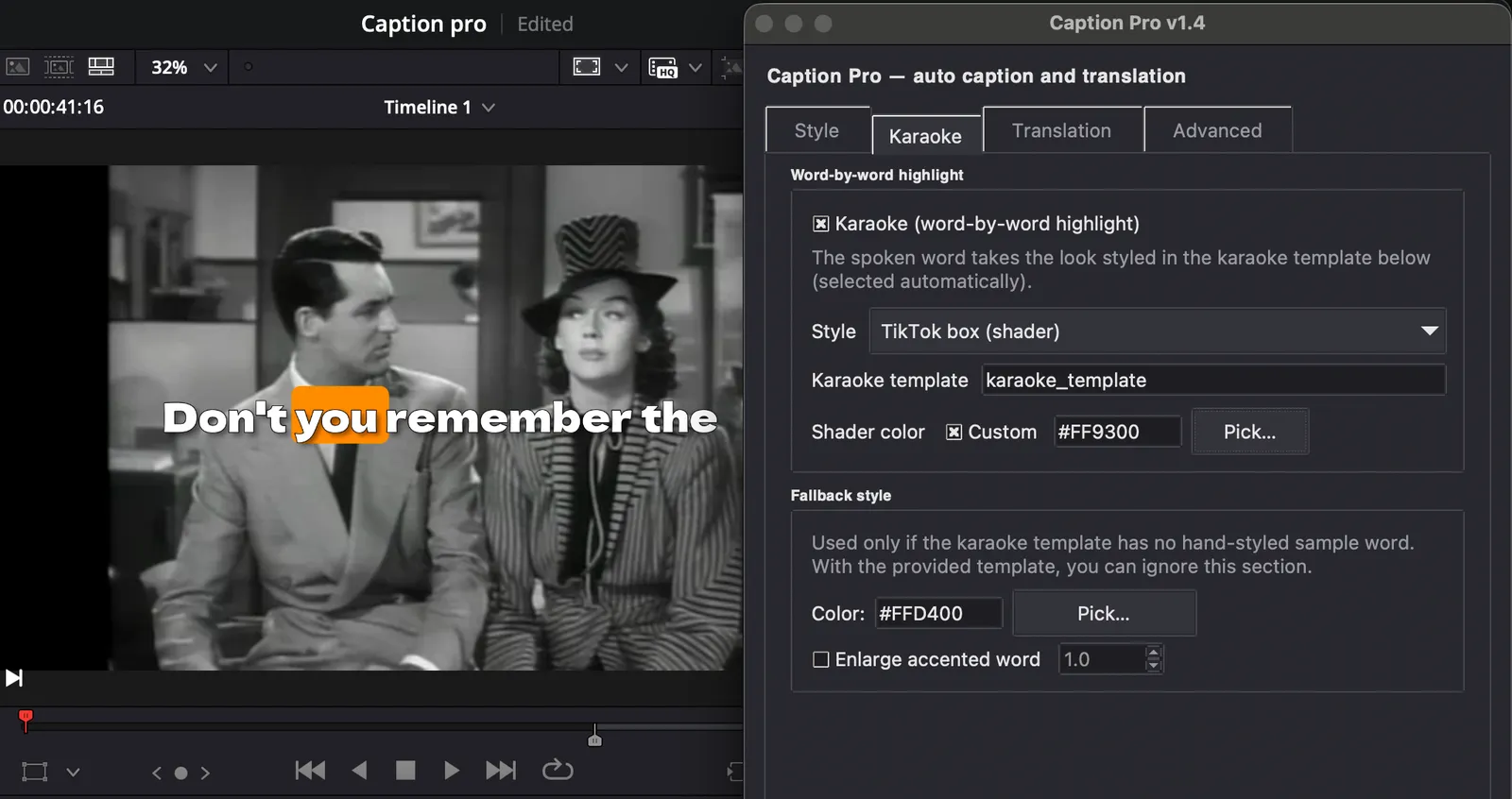
The first is the TikTok box: white text on a solid dark rounded box, the style the platform itself made standard. It reads on any background, busy or clean, at the cost of covering a little more of the image. The second is colored text with a strong outline or shadow: lighter on the frame, better on clean backgrounds, and it lets you light up the active word in an accent color while the rest stays white.
Whichever one I pick, I keep one emphasis color for the whole video, two at most. A caption that changes color every line stops being a caption and becomes a screensaver.
Animation: one bounce, nothing more
Movement should mark the spoken word, nothing else. The style I use most is pop-in: each word springs in with a quick bounce and stays still until the next one. It gives the text energy without turning it into a lyric video. If the video already moves a lot, fast cuts, handheld footage, I drop the animation entirely and keep plain karaoke highlighting. Motion on motion is tiring to read.
How this runs in practice
In Caption Pro, the whole styling pass happens in one tab. I transcribe the timeline, fix the few uncertain words the review screen flags, then pick a template: karaoke as a TikTok box, karaoke as colored text, pop-in, keyword emphasis, or the plain base style. Every template stays editable, font, size, colors, and I can regenerate the same transcript in a different style in seconds to compare, without transcribing again.
One honest limit: karaoke captions are burned into the image. That is exactly what TikTok and Reels want, since their own captioning is unreliable, but it means the text cannot be toggled off. For YouTube, where viewers expect a CC button, I export the same transcript as an SRT file from the same tool instead, and I keep the video clean. So the same transcript gets burned in for vertical and exported as SRT for long-form.
If you are comparing caption tools before deciding, I maintain an honest rundown of the caption and translation plugins for Resolve, including what mine does not do.
Help me keep writing
If these articles are useful to you, have a look at what I make.
Creator Pro
The ultimate DaVinci Resolve workspace for creators
View plugin — €29.00
VHS Nostalgia
Real VHS & CRT emulation for DaVinci Resolve
View plugin — €49.00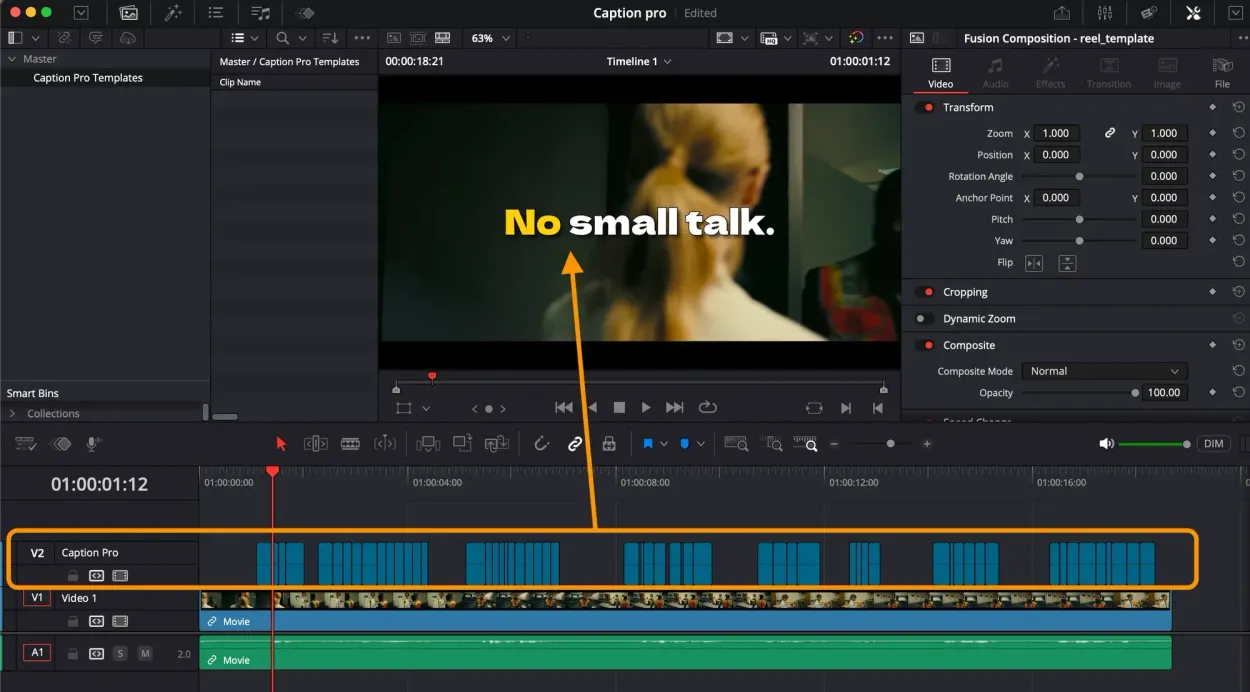
Caption Pro
Automatic word-by-word captions and translation for DaVinci Resolve
View plugin — €49.00
Get the zine
"Absorbed by the algorithm Vol. 1": 33 images shot in Paris, 28 pages, shipped worldwide.