How to Turn an Existing SRT Into Word-by-Word Captions in DaVinci Resolve
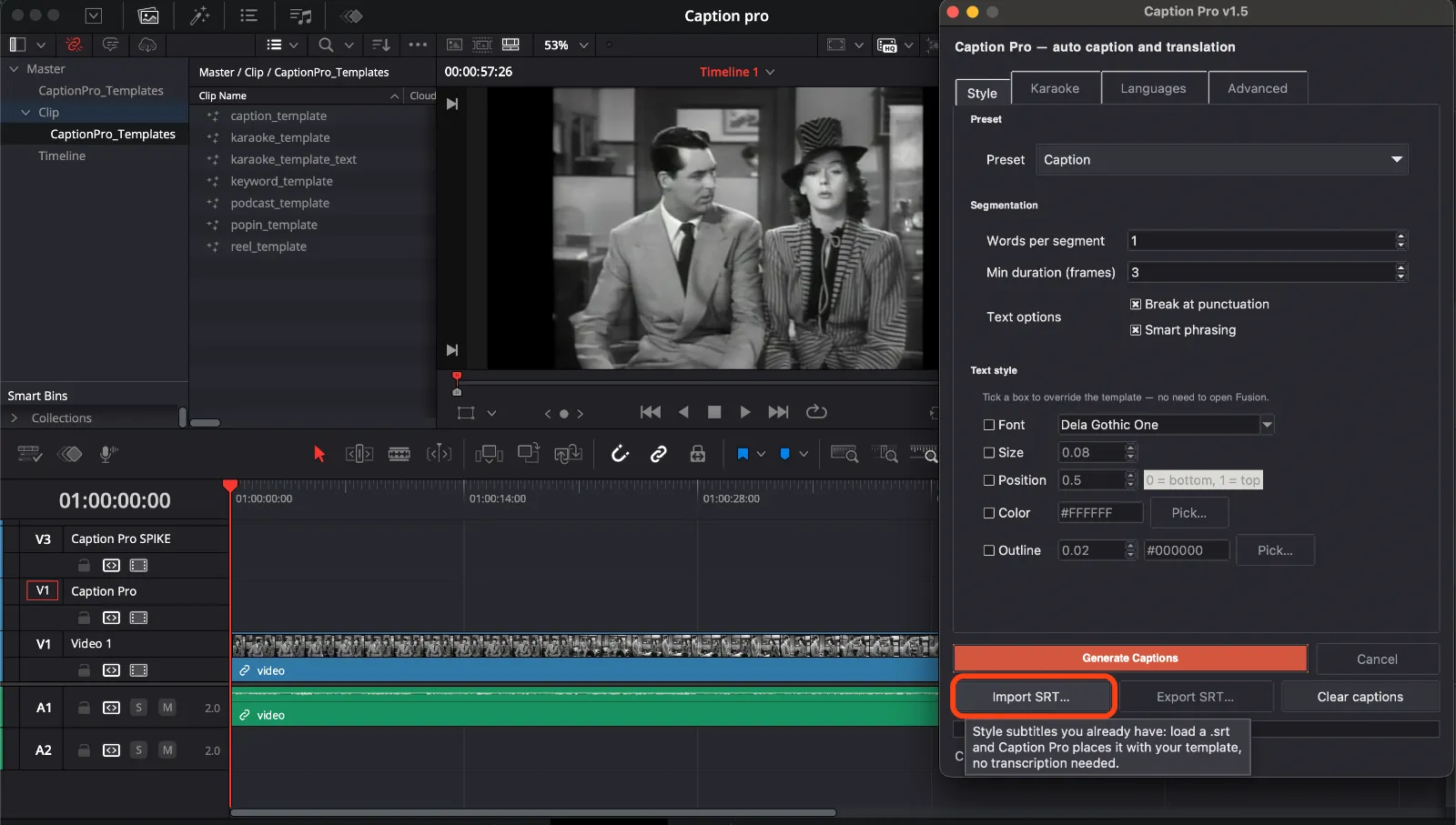
The subtitles already exist. A translator sent them back, a client approved the wording, or you corrected the YouTube auto-captions by hand three weeks ago and kept the file. Either way you are holding an .srt, and the last thing you want is to transcribe the video again and lose every correction that file represents.
DaVinci Resolve imports SRT files perfectly well. It puts them on a subtitle track, one static line at a time, at the bottom of the frame. For a documentary or a delivery subtitle track, that is exactly right. For a Reel, it is the opposite of what you need.
This article is about the gap between those two: taking subtitles you already have and turning them into the word-by-word captions that vertical video runs on. I wrote separately about generating captions from scratch with Whisper and about how I style them for Reels and TikTok. This is the case where the transcription step should simply not happen.
Why an SRT cannot be karaoke on its own
An SRT is a list of cues. Each one holds a start time, an end time, and a block of text. That is the whole format.
Karaoke captions need something an SRT does not contain: a timing for every individual word. When a word lights up at the exact moment it is spoken, that comes from word-level timestamps, which Whisper produces during transcription and which the SRT format has no field for. So there are only two ways to get from a subtitle file to a word-by-word caption. Either you transcribe the audio again and throw away the text you already have, or you keep the text and lay its words out across the cue they belong to.
The second road is the one Caption Pro takes since v1.5. It does not keep the lines of your SRT, it keeps its boundaries. Each cue imposes its own in and out point, and the words inside it are spread across that window in proportion to their length, so a long word holds the screen a little longer than a short one. The first word starts exactly at the cue's start, the last one ends exactly at its end, and nothing drifts outside the window the file gave it.
What happens after that is the part worth understanding, because it is what makes the import useful rather than decorative. Once the file is parsed, the cues stop existing as lines. What remains is a list of timed words, exactly the same material a transcription produces, and the captions are then rebuilt from your own phrasing settings: words per segment, breaks on punctuation, smart phrasing, karaoke mode. A cue holding eight words comes out as four captions of two words if that is how the panel is set.
Your text is never rewritten. Your line breaks are, and that is the whole point: the file was written in lines because it was meant to be read as lines, and you are turning it into something else.
When importing beats transcribing
I reach for the import when the text is worth more than the timing.
A translation you paid for is the clearest case. A professional translator wrote those lines, someone signed off on them, and no local model is going to improve on that. Same for anything with approved wording: brand names, legal disclaimers, product names spelled a specific way. Same again for a video you captioned last month, corrected line by line, and are now re-cutting into three vertical clips. The transcript is done. Only the styling is missing.
There is a practical version of this too. Importing skips the two slow steps entirely: no audio is rendered out of the timeline and Whisper never runs. On a long video that is the difference between a coffee break and a few seconds, and the placement itself got up to seven times faster in the same release.
The workflow
Import the SRT, pick a template, generate. That is the short version, and on a clean file it really is three clicks.
The longer version is where the choices are. The first one is how many words sit on screen at a time, because that setting, not the file, decides how the captions are cut. I keep it low for vertical, two or three, and let breaks fall on punctuation. The template then decides what those captions look like: karaoke as a TikTok box, karaoke as colored text, pop-in, keyword emphasis, or the plain base style. Since v1.5 the rest of the look is set in the panel rather than in Fusion, so font, size, vertical position, color and outline all happen in the same window, and they apply to every clip at once. If you only want captions on part of the timeline, set In and Out points before generating and only that range gets covered.
Then regenerate. Trying a second style on an imported SRT costs nothing, because there was never a transcription to redo. I usually place the TikTok box version first, look at it on a phone-sized preview, and switch to colored text if the box is eating too much of the frame.
What you do not need to fix first
The instinct is to tidy the file before importing it. Mostly you should not bother.
You do not need to reformat the lines. A subtitle written for a normal player holds seven to ten words per cue, because it was meant to be read as a full line under a film, and vertical captions want one to four words on screen. That mismatch fixes itself, since the grouping is rebuilt from your settings rather than from the file.
You do not need to clean the file up either. The parser is deliberately forgiving: milliseconds written with a comma or a dot, a BOM at the start, Windows line endings, missing cue numbers, italic and font tags, all handled. Timecodes that run backwards get repaired instead of rejected, blocks arriving out of order get sorted by start time, and a file that is not valid UTF-8 falls back to cp1252, which is what old Windows subtitle tools tend to produce. The only file it turns down is one with no timecodes in it at all.
What does matter is the quality of the timings, because that is the one thing the import cannot reconstruct. A hand-corrected SRT usually has tight cues. One scraped from an auto-caption service often has cues that run long or hold a full sentence across a pause. Word timing derived from a loose cue inherits that looseness, and no styling fixes it afterwards.
The honest limit
Timing spread across a cue is not the same thing as timing measured from the audio. Weighting each word by its length is a good stand-in for speech rhythm, since longer words do take longer to say, but it is a stand-in. The cue's own edges are exact; what happens between them is an estimate. On tight cues nobody watching a Reel will ever notice. On cues that run long, individual words drift off the voice, and that is the file's doing rather than the tool's.
So the rule I use is simple. When the text matters more than the timing, because it was translated, corrected or approved, import the SRT. When the timing matters more than the text, transcribe from the audio, where Whisper measures every word against the waveform, and fix the few uncertain words in the review screen before anything reaches the timeline.
Both roads end in the same place, which is worth saying: the same project can carry burned-in karaoke for the vertical cut and a clean SRT export for the YouTube version, from one source of text. Everything runs locally either way, on the free version of Resolve.
If you are still choosing a tool, I keep an honest rundown of the caption and translation plugins for DaVinci Resolve, including what mine does not do. The full list of what changed in v1.5 is on the Caption Pro changelog.
Help me keep writing
If these articles are useful to you, have a look at what I make.
Creator Pro
The ultimate DaVinci Resolve workspace for creators
View plugin — €29.00
VHS Nostalgia
Real VHS & CRT emulation for DaVinci Resolve
View plugin — €49.00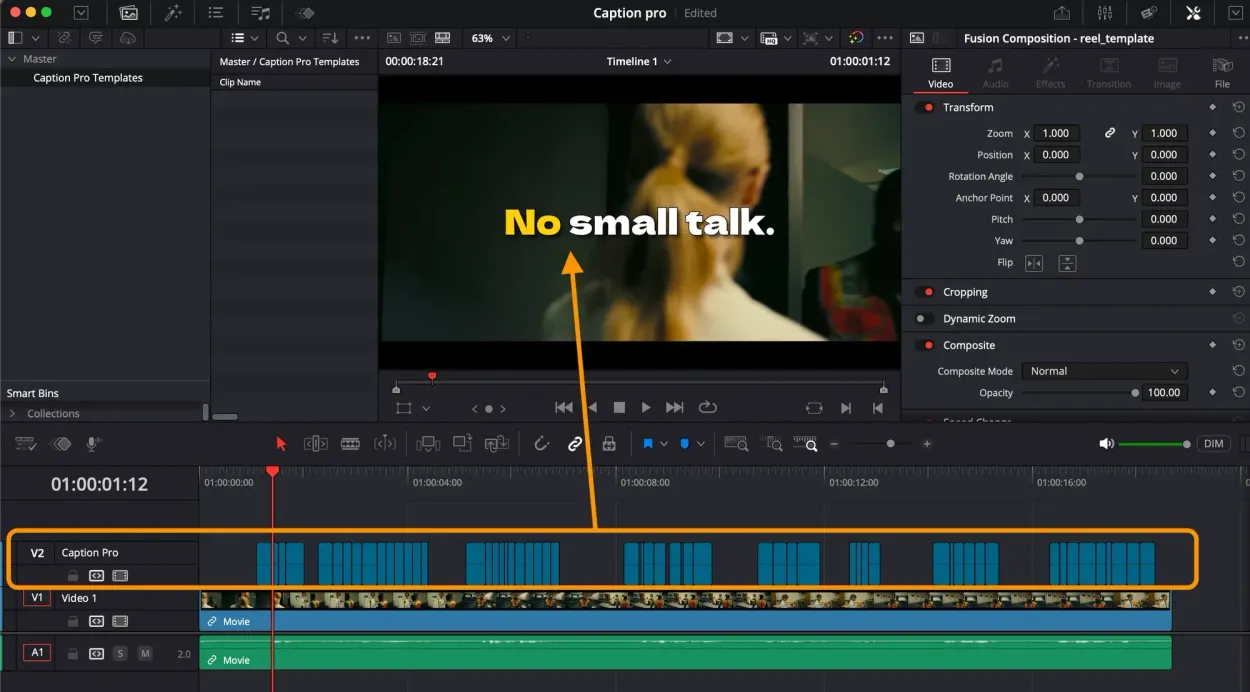
Caption Pro
Automatic word-by-word captions and translation for DaVinci Resolve
View plugin — €49.00
Get the zine
"Absorbed by the algorithm Vol. 1": 33 images shot in Paris, 28 pages, shipped worldwide.